Preparing WhatsApp Templates
WhatsApp Templates are message templates approved by Meta to easily reach out to a large audience. These are the only messages that are compliant with regulations to proactively initiate conversations.
When creating templates, please follow these rules:
- Must use an officially approved template.
- Clearly state your identity and the purpose of the message.
- Must include clear opt-out instructions, respecting the user's right to choose.
- Strictly prohibit any promotional incentives, violent, or sensitive information.
Messages violating the above rules may be classified as spam, potentially leading to account restrictions.
Procedures
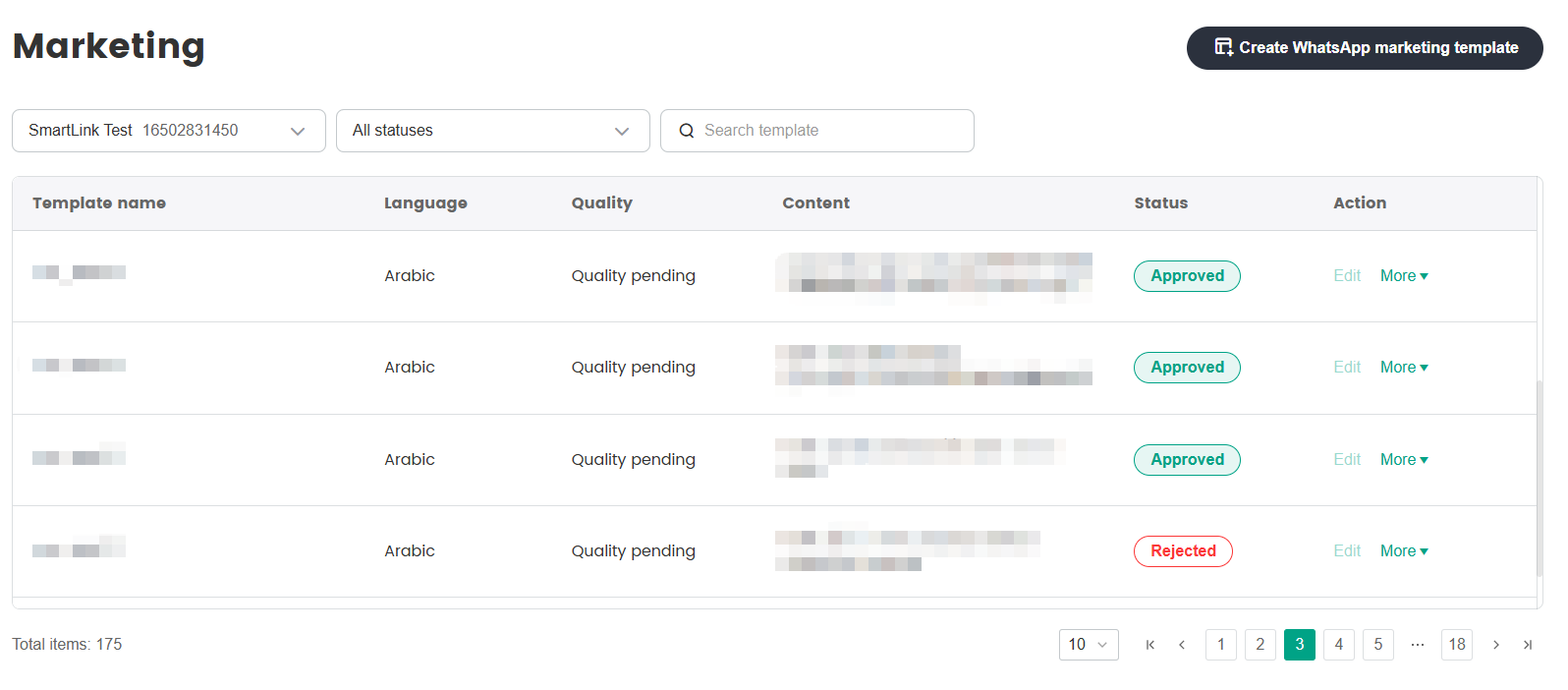
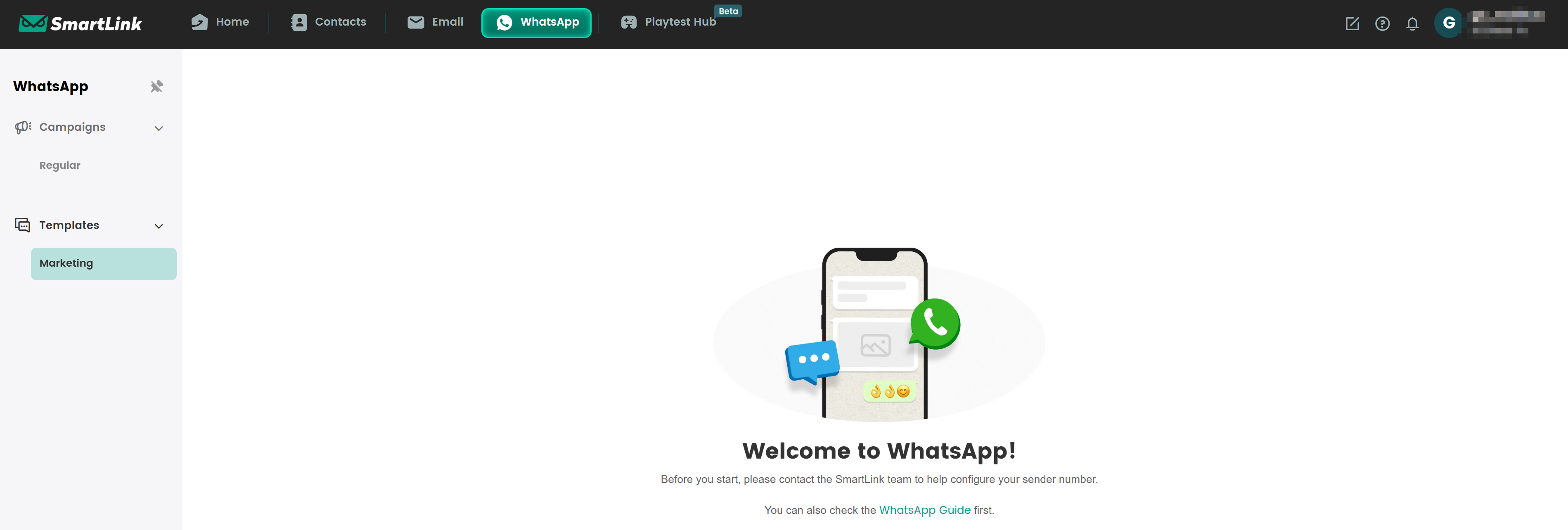
- In the SmartLink top sidebar,select WhatsApp, then select Marketing under Templates in the sidebar to open the WhatsApp Templates page.
- Click Create WhatsApp marketing template.
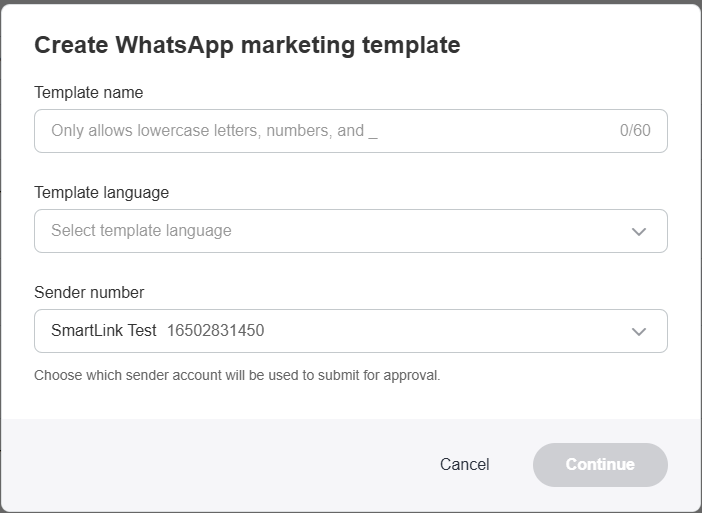
- In the pop-up panel, enter the Template name, select the Template language and your WABA account, then click Continue.
WhatsApp only allows lowercase letters, numbers, and underscores for the template name.
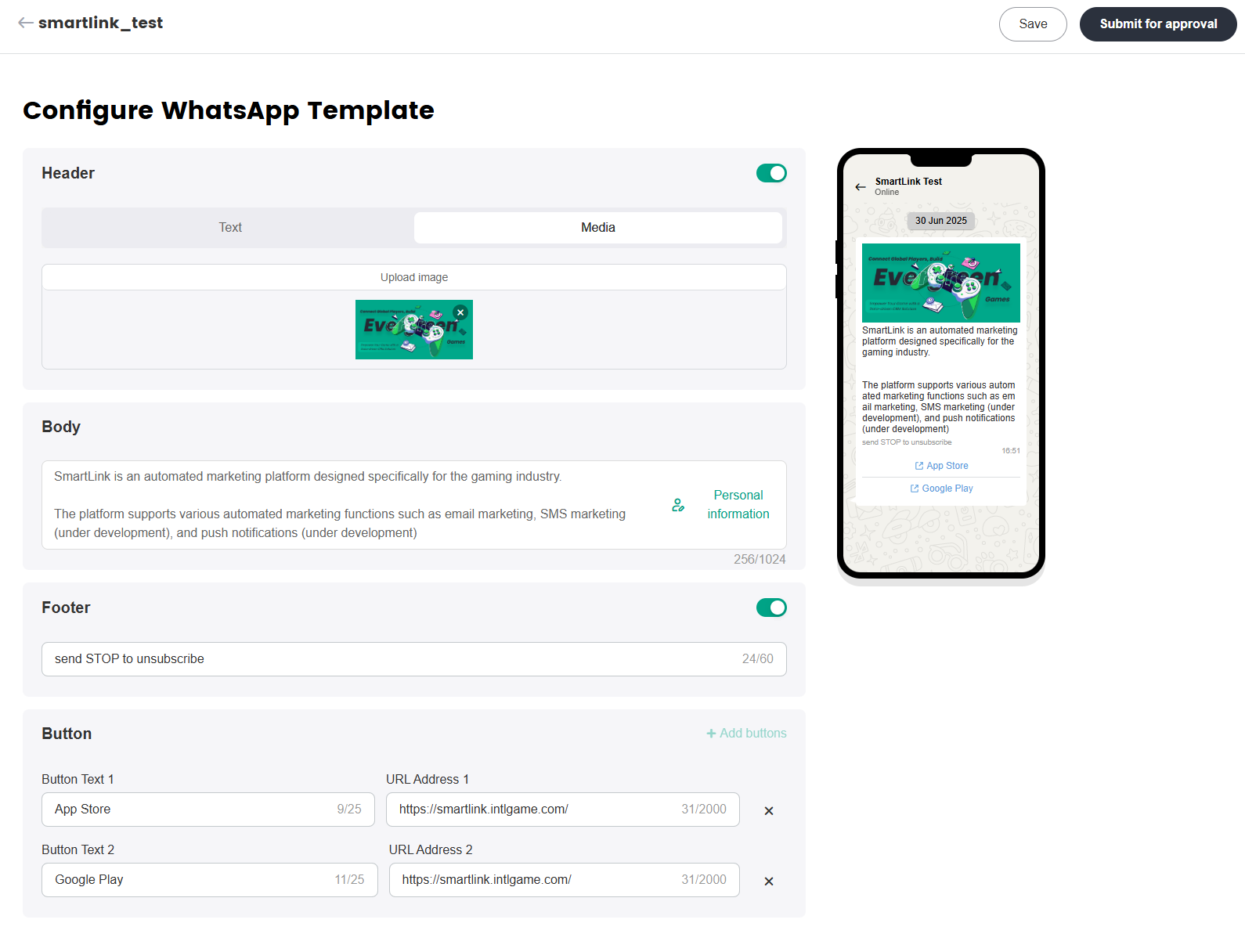
- Open the WhatsApp template editor to configure the Header, Body, Footer, and Buttons.
- For the Header you can insert text or an image;
- The Body can contain up to 1024 characters;
- The Footer needs to have an opt-out method, this is legally required by GDPR;
- Buttons can be used to add download links, socials, websites, etc.
WhatsApp templates also support placeholders. They can be inserted in both the Header and Body. Placeholders need to follow the rules below:
- Header placeholders: Only 1 placeholder is allowed, and it can only be placed at the beginning or the end;
- Body placeholder: Placeholders are not allowed to be placed at the very beginning or end of the body;
- Body length: The total text must be at least 3 times the number of placeholders used;
- Placeholders Management: Placeholder names cannot be edited. If you need to make adjustments, you'll need to delete the placeholder and add it back.
After everything has been set up, click Save or Submit for review. After it's submitted, the template cannot be edited anymore.
Return to the WhatsApp templates list to track the template approval status
- Pending: The template has been submitted and is awaiting Meta's review.
- Approved: The template has passed Meta's review and can be used to send messages to users.
- Rejected: The template failed Meta's review due to non-compliance with policies or format requirements and cannot be used.