Importing WhatsApp Contacts
A list with phone numbers is the foundation for scaling your message delivery on WhatsApp. Meta's compliance regulations require the user's explicit consent to collect their phone number. Players must manually input their phone number or tick a permission box. It is not allowed to collect any contact information without a player's explicit consent.
Procedures
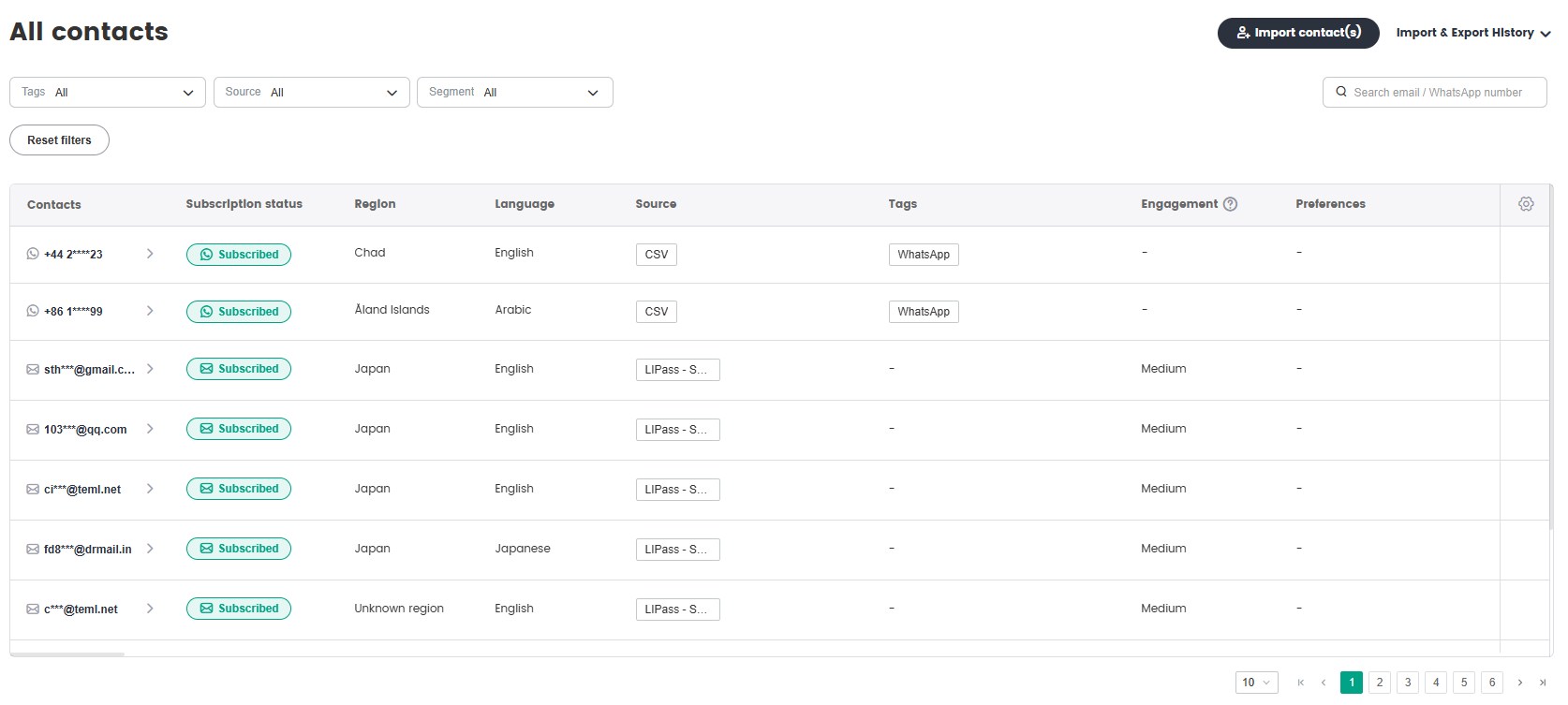
In the SmartLink top sidebar, select Contacts page,then select All Contacts under Contacts.
Select Import contact(s), then select Import CSV file, and click Continue.
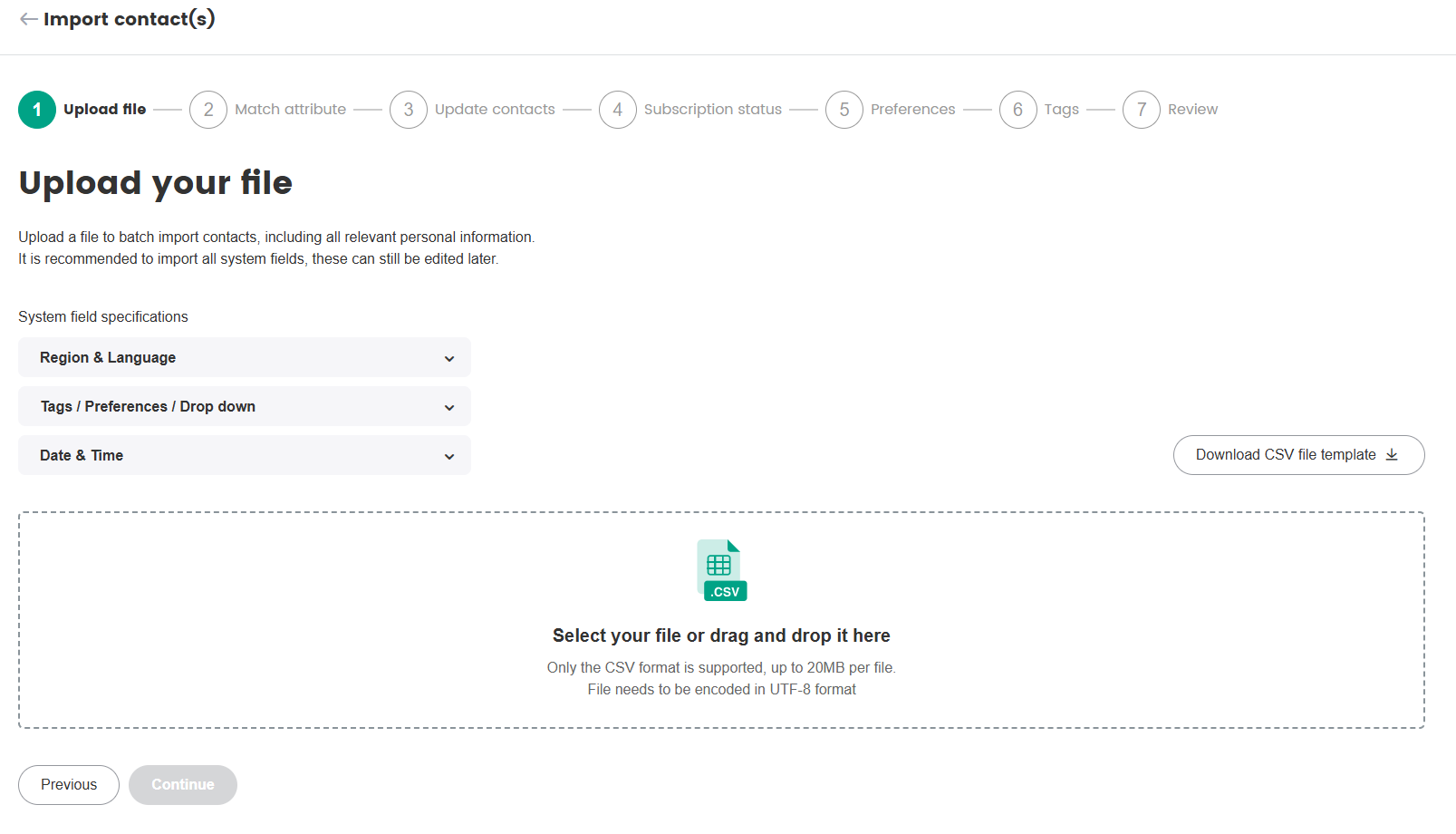
Download the CSV file template and fill in your contacts data according to the template.

- Upload the completed CSV template and click Continue. The CSV file size limit is 20 MB and only a single file can be uploaded each time.
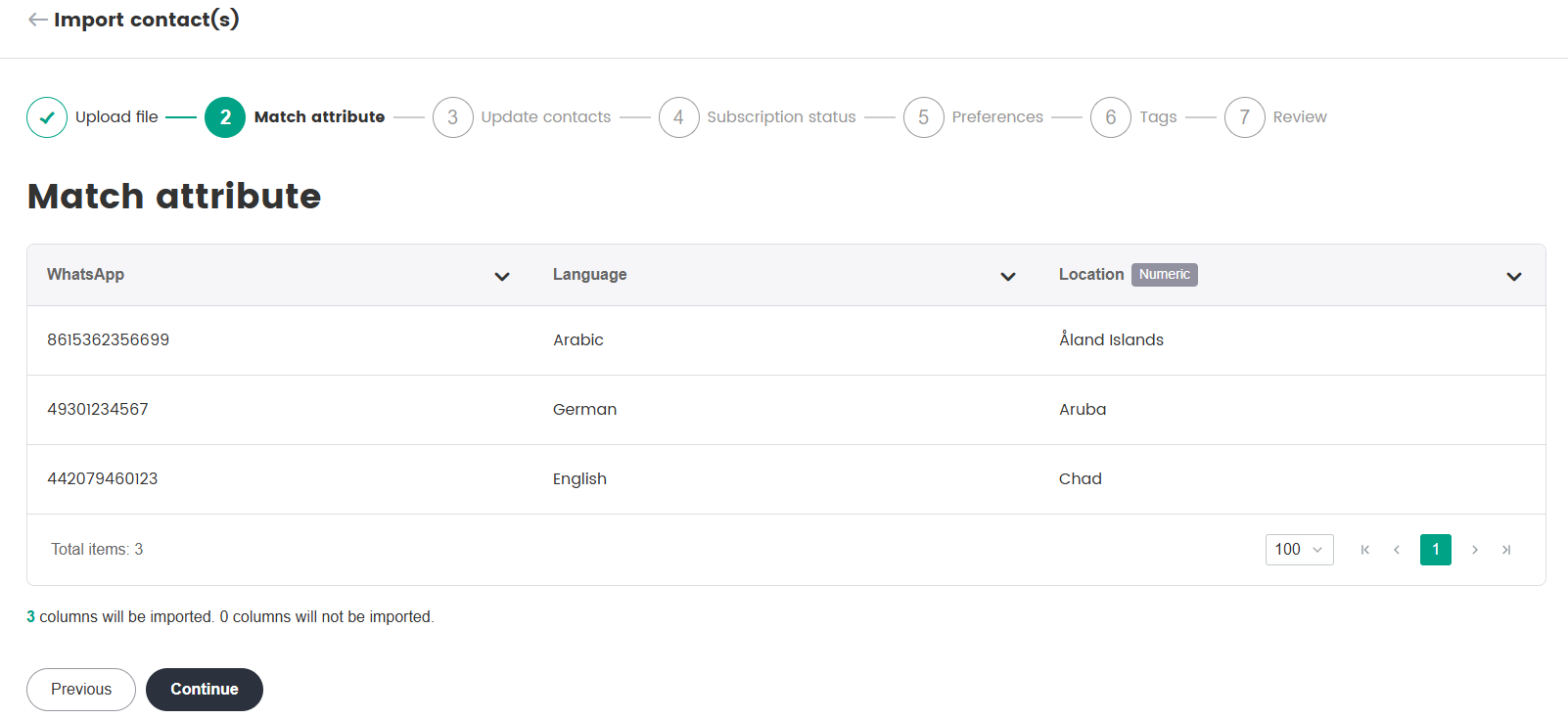
- After importing the CSV file, review all imported attributes. If everything is correct, click Continue.
Decide if you want to Update existing contacts that already exist in SmartLink, then click Continue. When this box is ticked, it will either replace existing data (for single value attributes) or add new data (for multi value attributes).
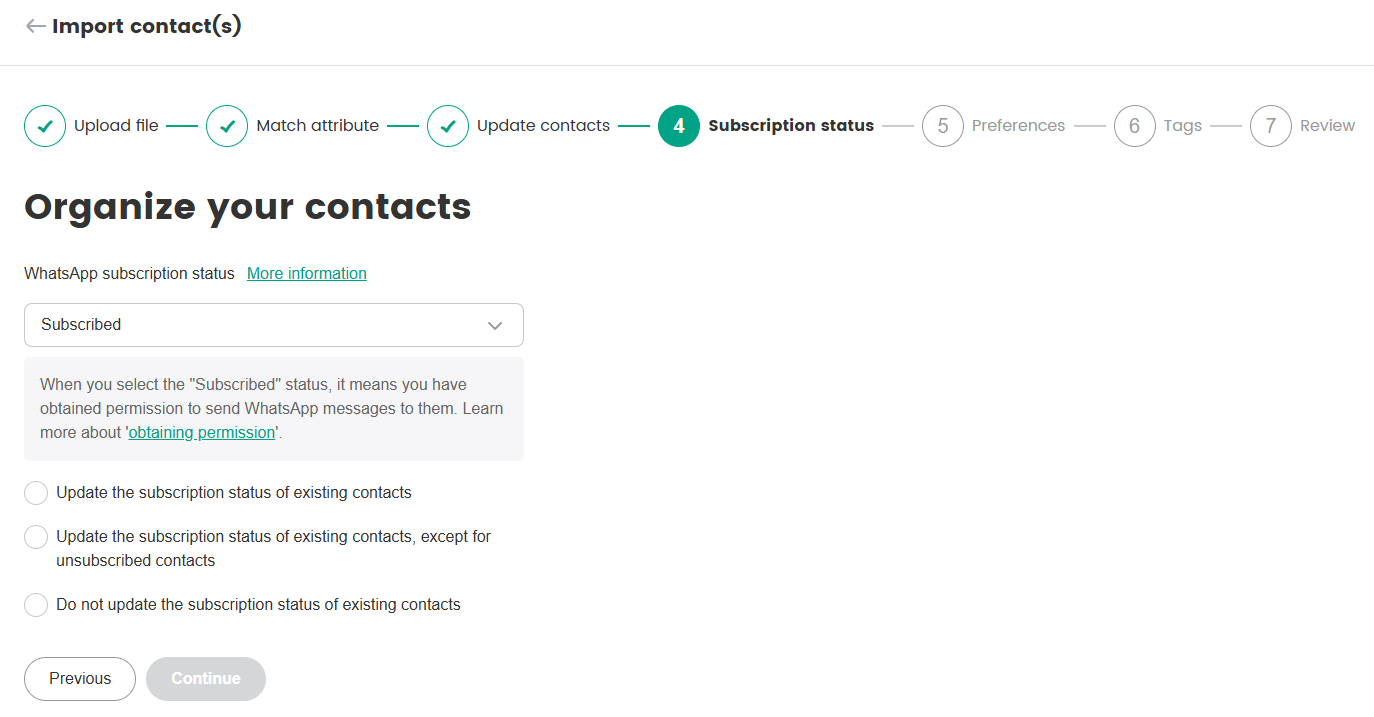
Select the Subscription Status for all contacts in this import and click Continue.
- Subscribed: Updates the subscription status of new contacts to 'Subscribed'.
- Unsubscribed: Updates the subscription status of new contacts to 'Unsubscribed'.
- Non-subscribed: Updates the subscription status of new contacts to 'Unknown'.
Select the Preference(s) for all contacts in this import and click Continue. To add more Subscriber preferences, see Manage Contact Preferences。
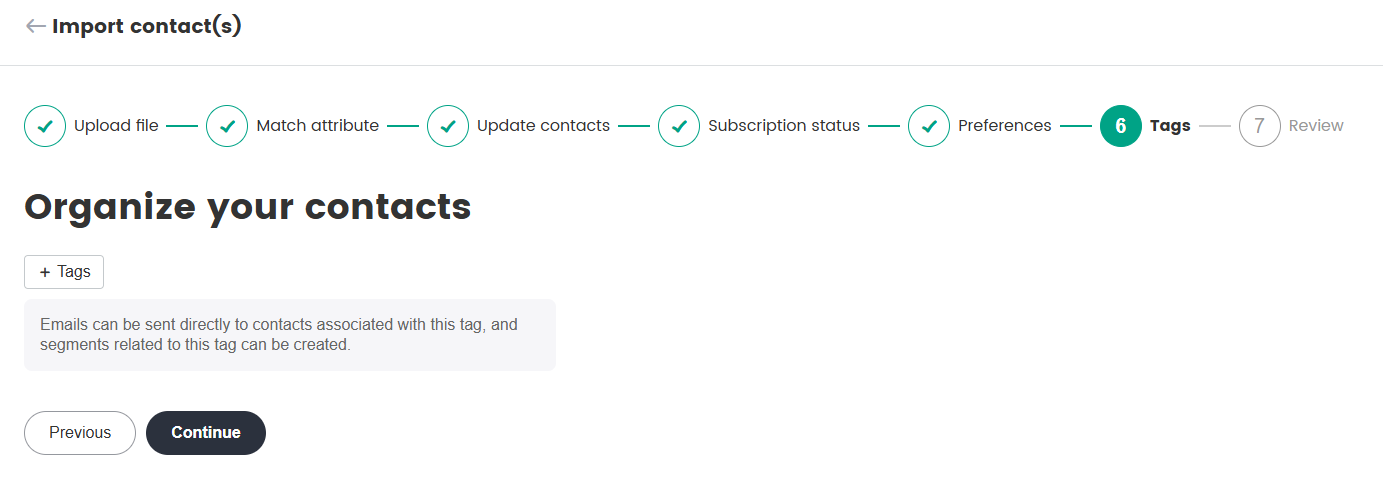
Add Tags to the contacts if necessary and click Continue. Tags can for example be used to differentiate these contacts from others who are not in the uploaded CSV. For more information on tags, see Manage Contacts by Tags。
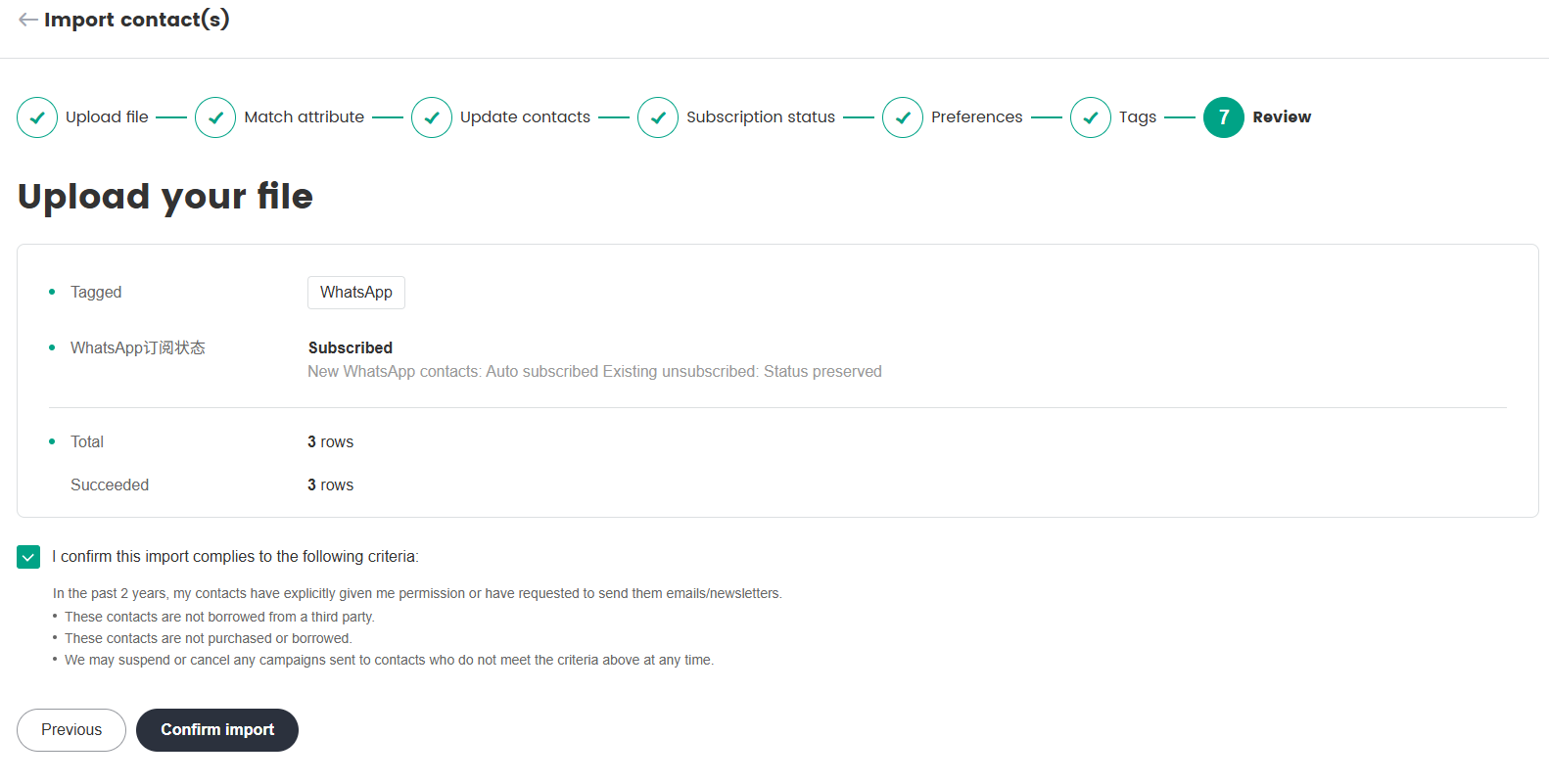
- Review the imported information. If everything is correct, click Confirm Import.
- After importing these contacts, you can view the contact details on the All contacts page.