Playtest Hub Configuration Guide
Note: The Playtest Hub feature needs to be integrated with third party platforms (Steam and Discord). It is important to follow the instructions below and obtain the required details from these platforms. After adding these details to the table in part 1, inform your SmartLink contact person.
Part 1: Configurations summary
Please fill out the table below and send it to your SmartLink contact person.
| Platform | Parameter | Value | Remarks | Description |
|---|---|---|---|---|
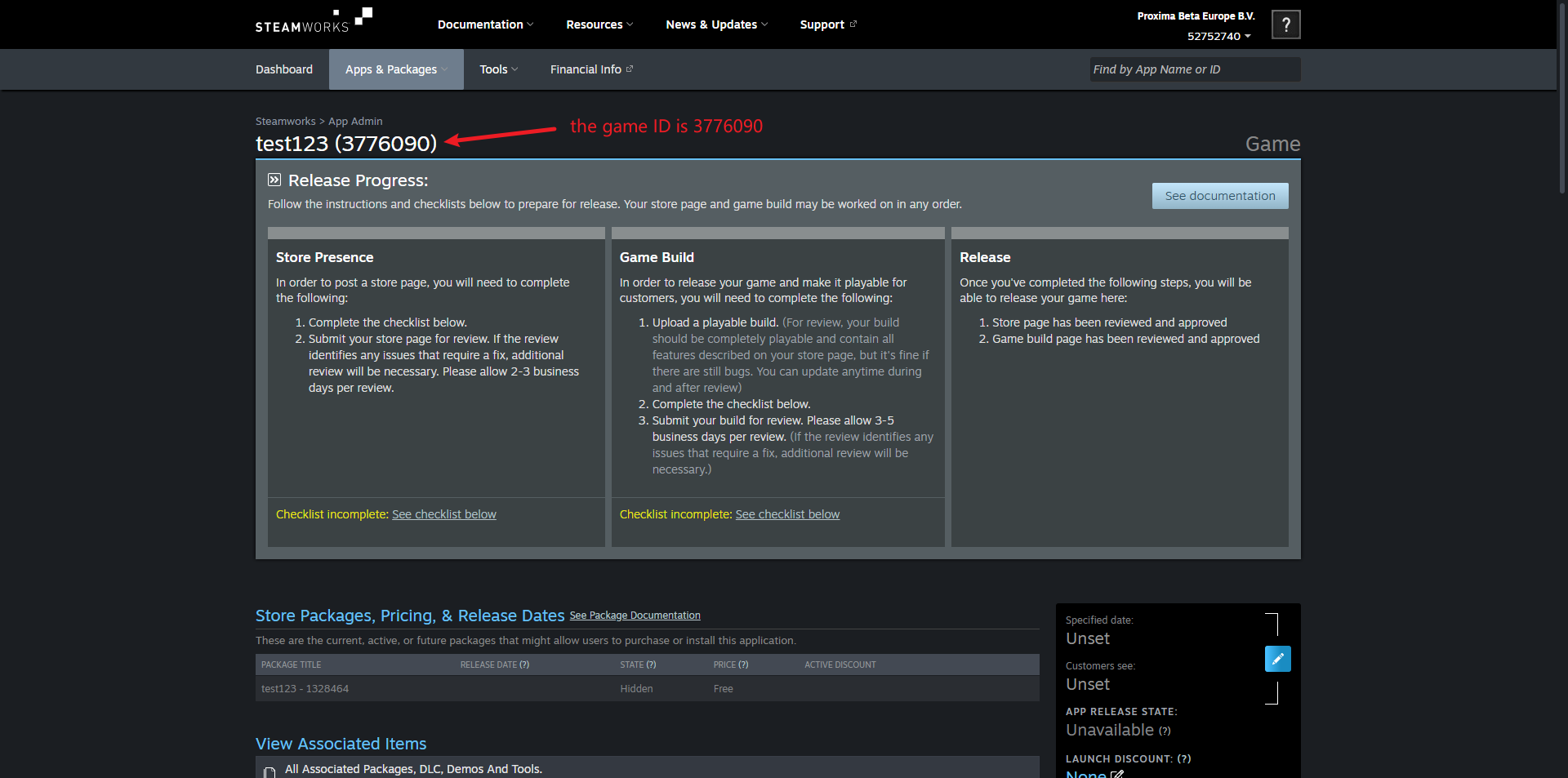
| Steam | App ID | Required | A unique numerical identifier assigned to every game on Steam. It allows developers to retrieve information about the game. | |
| SteamWorks Web API KEY | Required | A Steam Web API key is a unique, secret code that authenticates your Steam account to allow SmartLink to securely access your Steam data. | ||
| Discord | Client ID | Required | A unique, public 18-19 digit number that identifies a specific application in the Discord Developer Portal. It is used in OAuth2 authorization flows, allowing users to safely connect third-party apps to their accounts without sharing their personal credentials. | |
| Client Secret | Required | A confidential key used to authenticate an application with Discord's API. | ||
| Bot Token | Required | A confidential string of characters acting as a password and API key, allowing your bot to log in, authenticate, and communicate with Discord servers. | ||
| Guild ID (Server ID) | Required | A unique numerical identifier for a Discord server. This is the specicif server your testers will be joining. | ||
| Channel ID | Required | A unique, permanent 18-19 digit number assigned to every text or voice channel. This is the channel your testers will be directed to when they open Discord. | ||
| Role ID | Not Required | A unique numerical identifier for a specific role. These are the roles your testers will be granted. |
Part 2: Steam integration
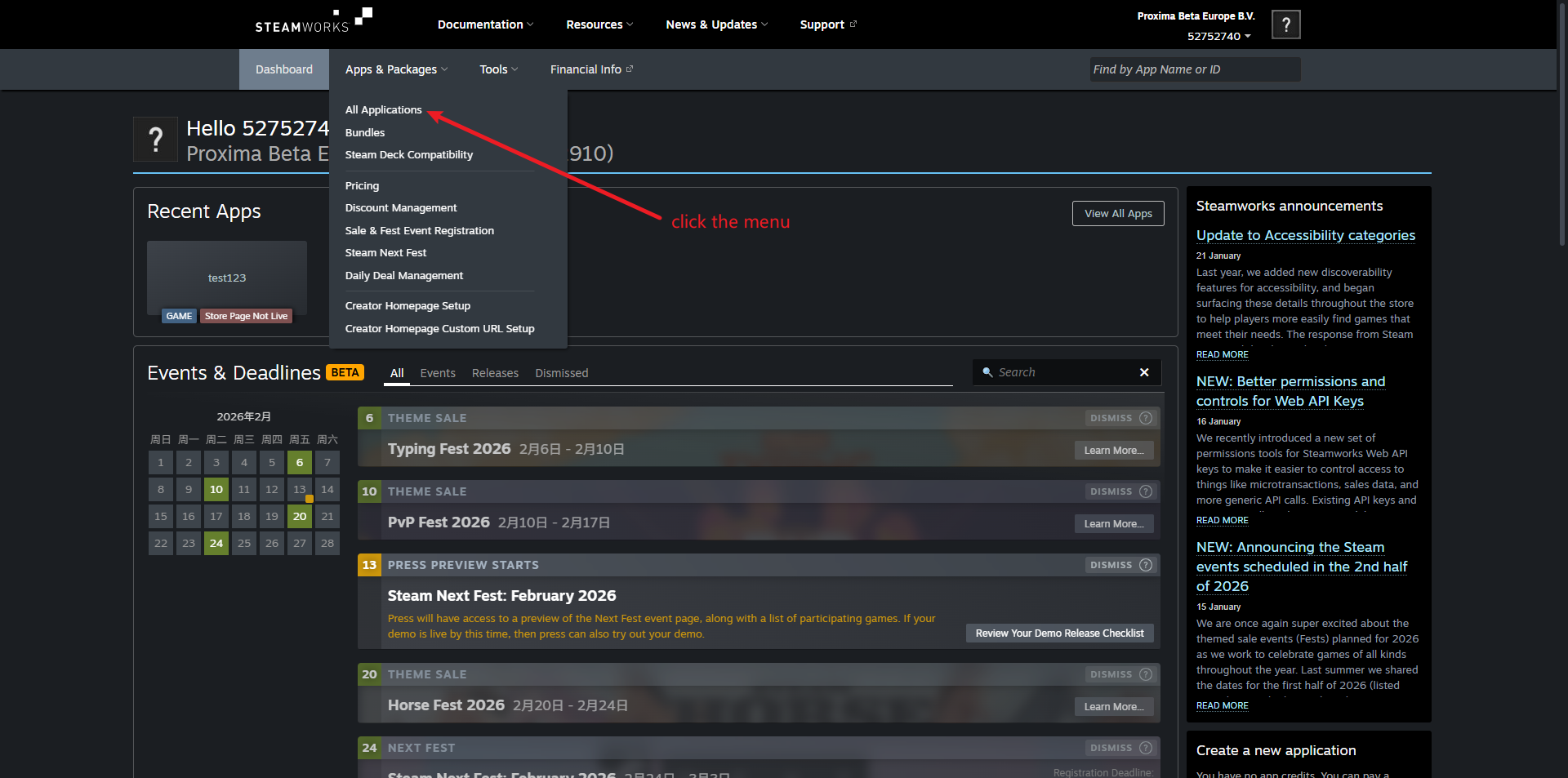
How to: Obtain Steam Web API Key.
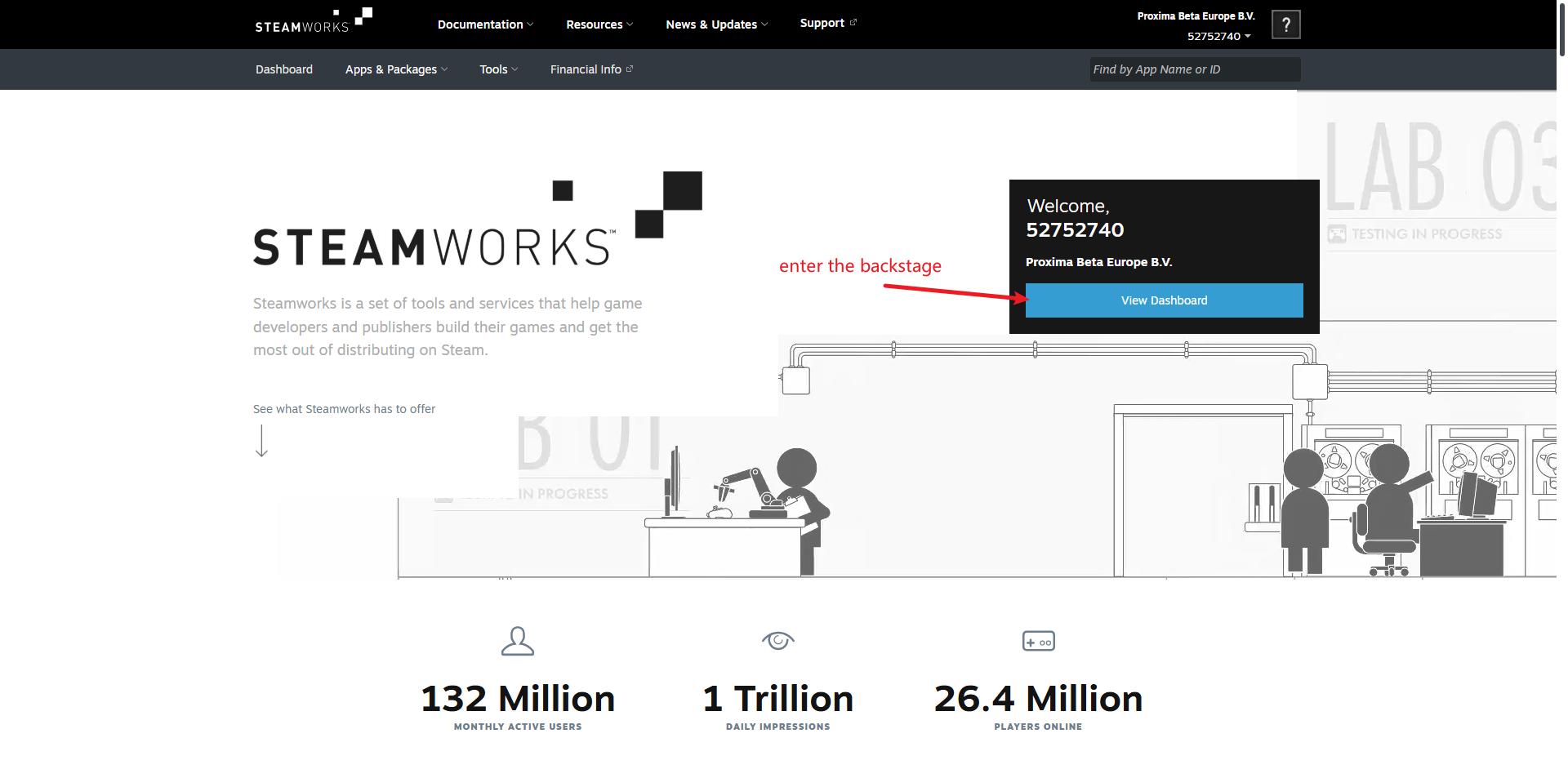
- Log in SteamWorks
Visit: Steamworks
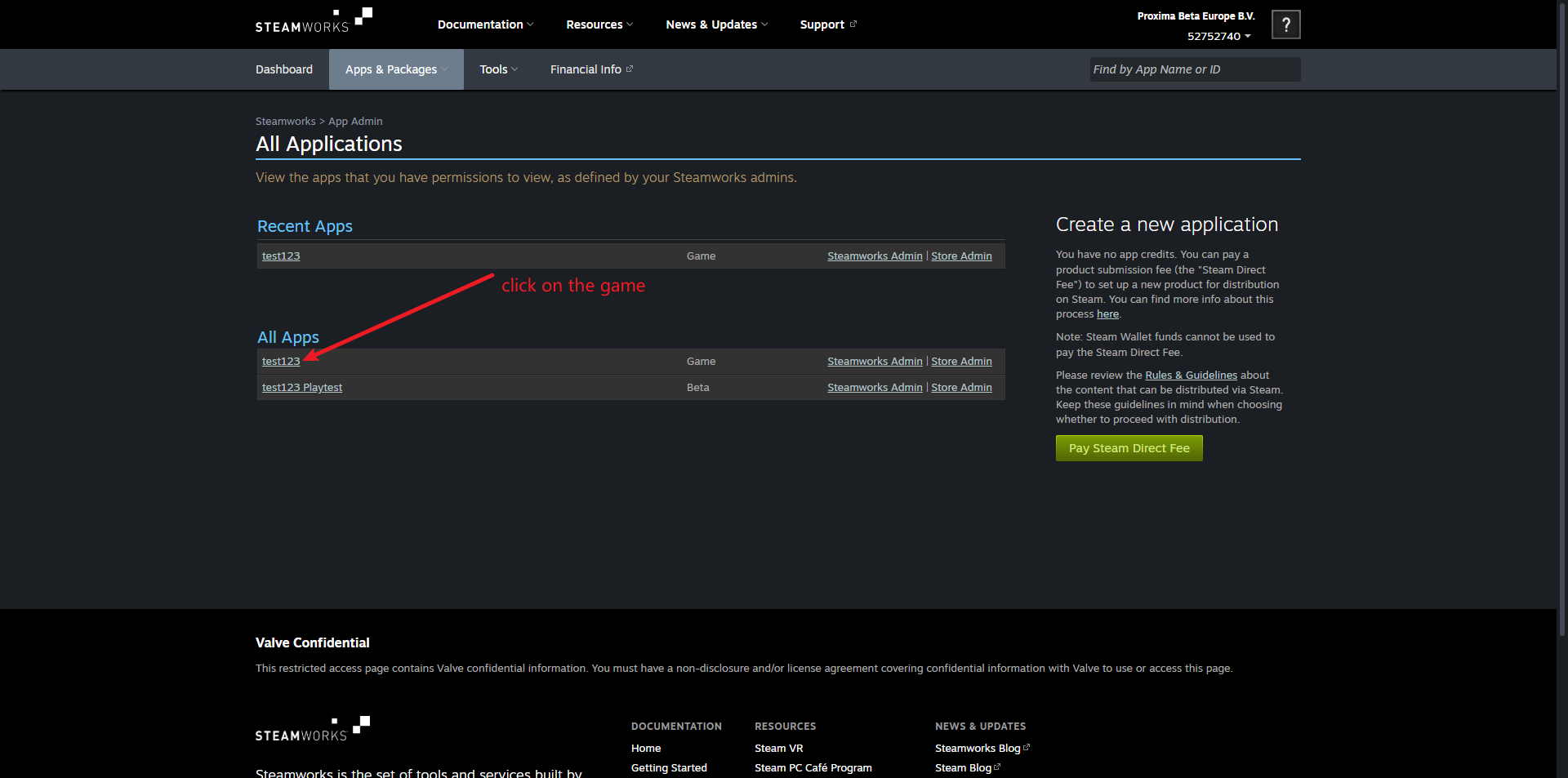
Get APP ID
- Get SteamWorks Web API Key
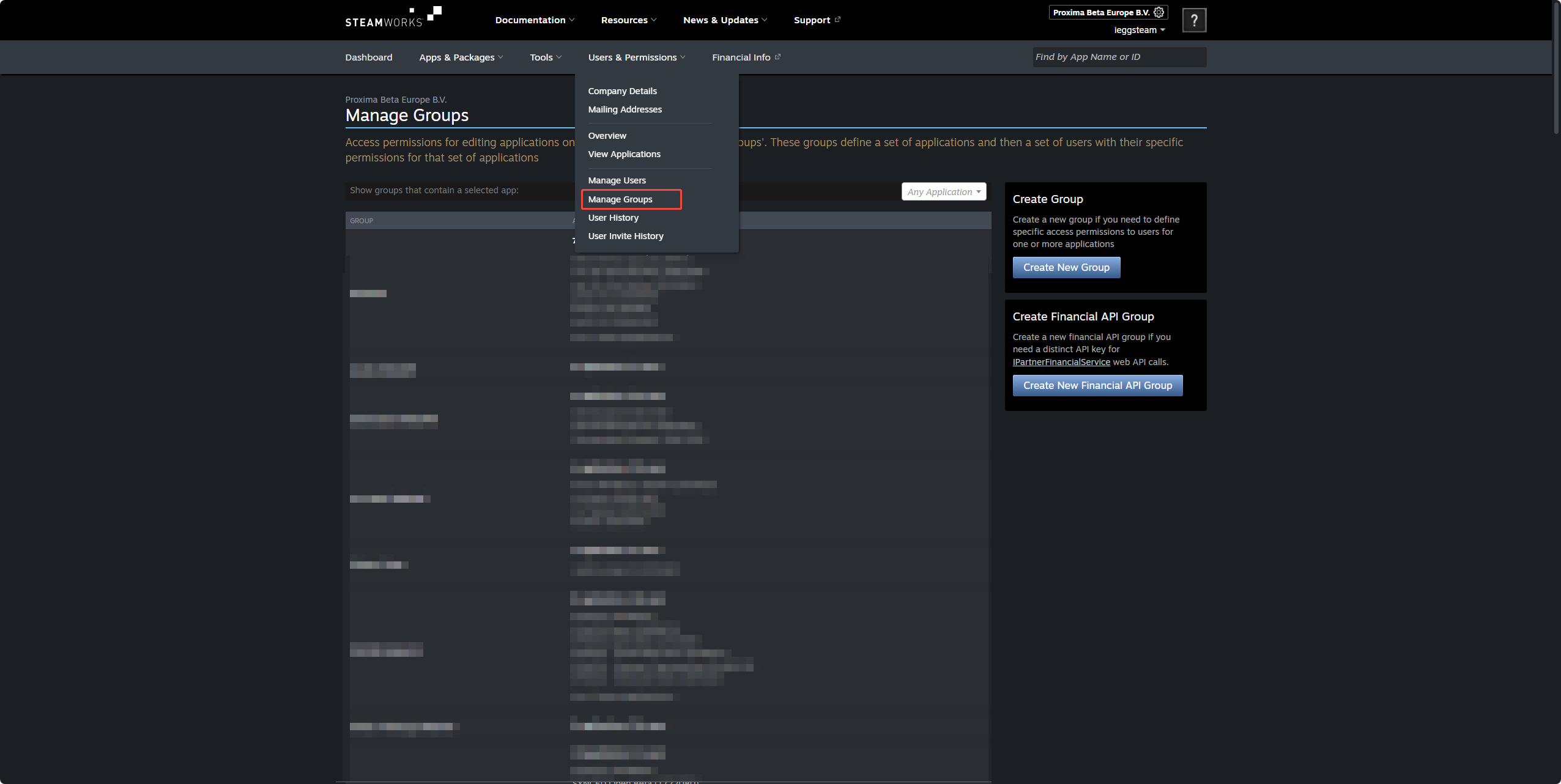
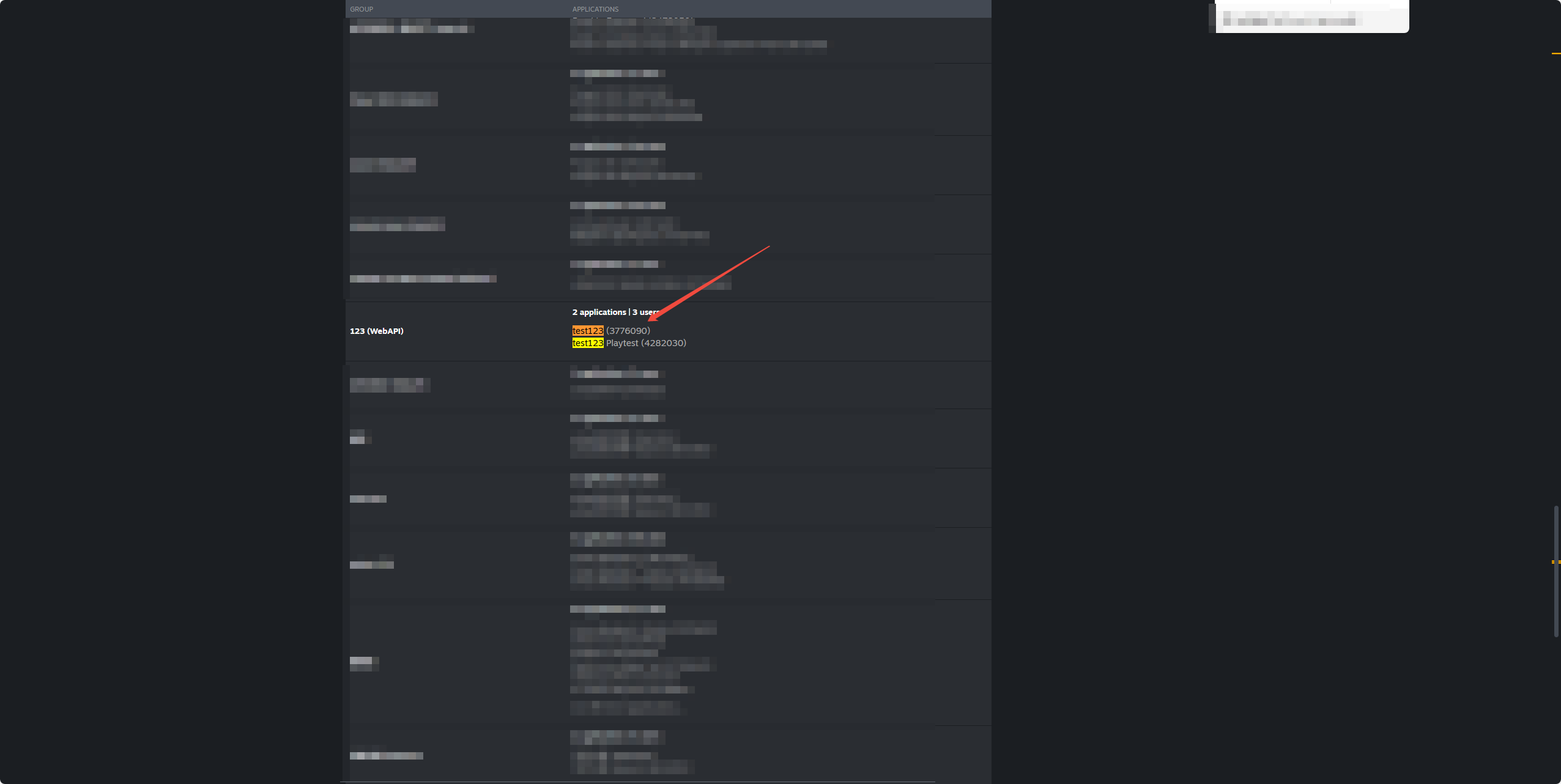
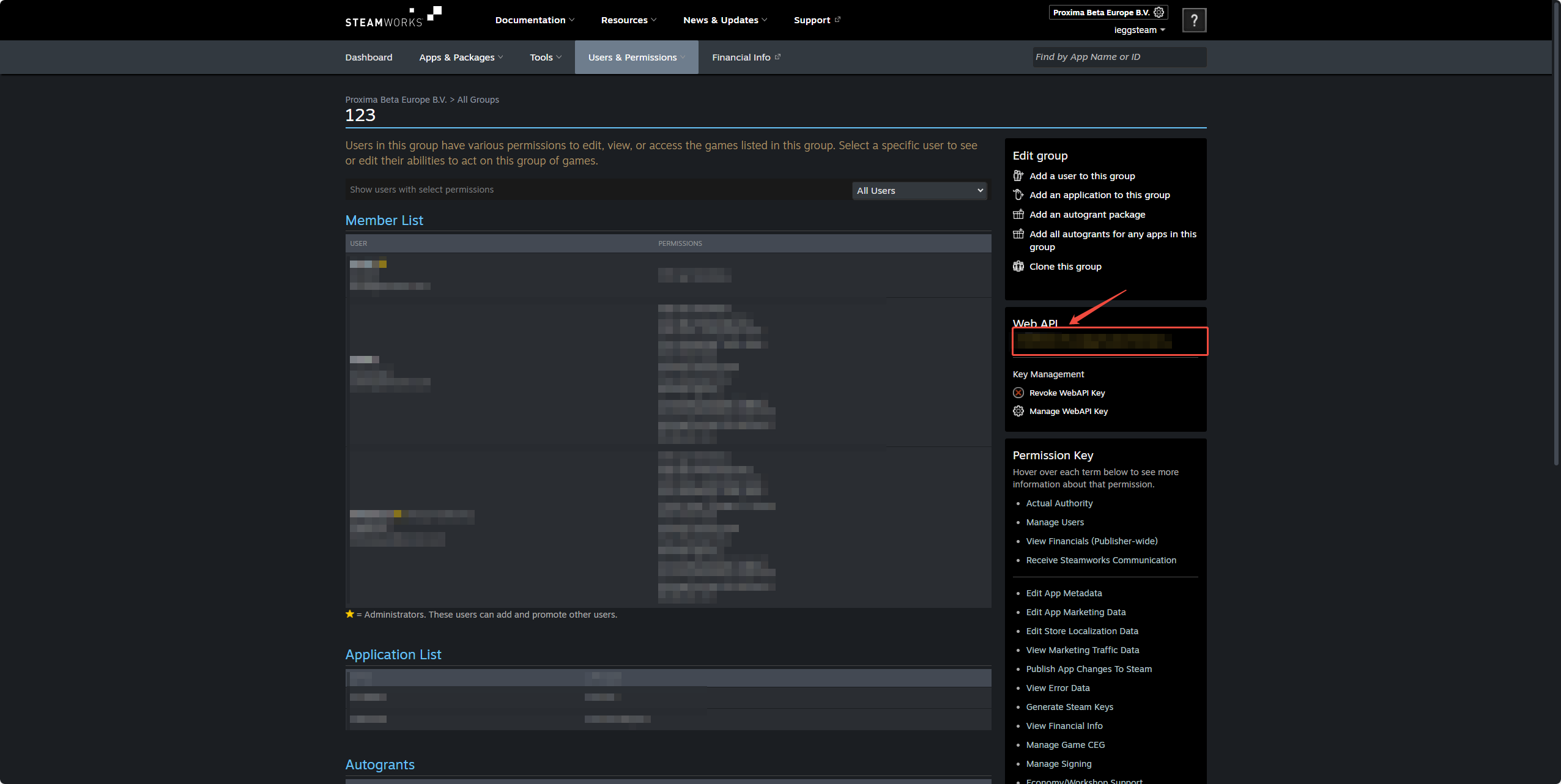
- Configure SteamWorks Web API Key Permissions
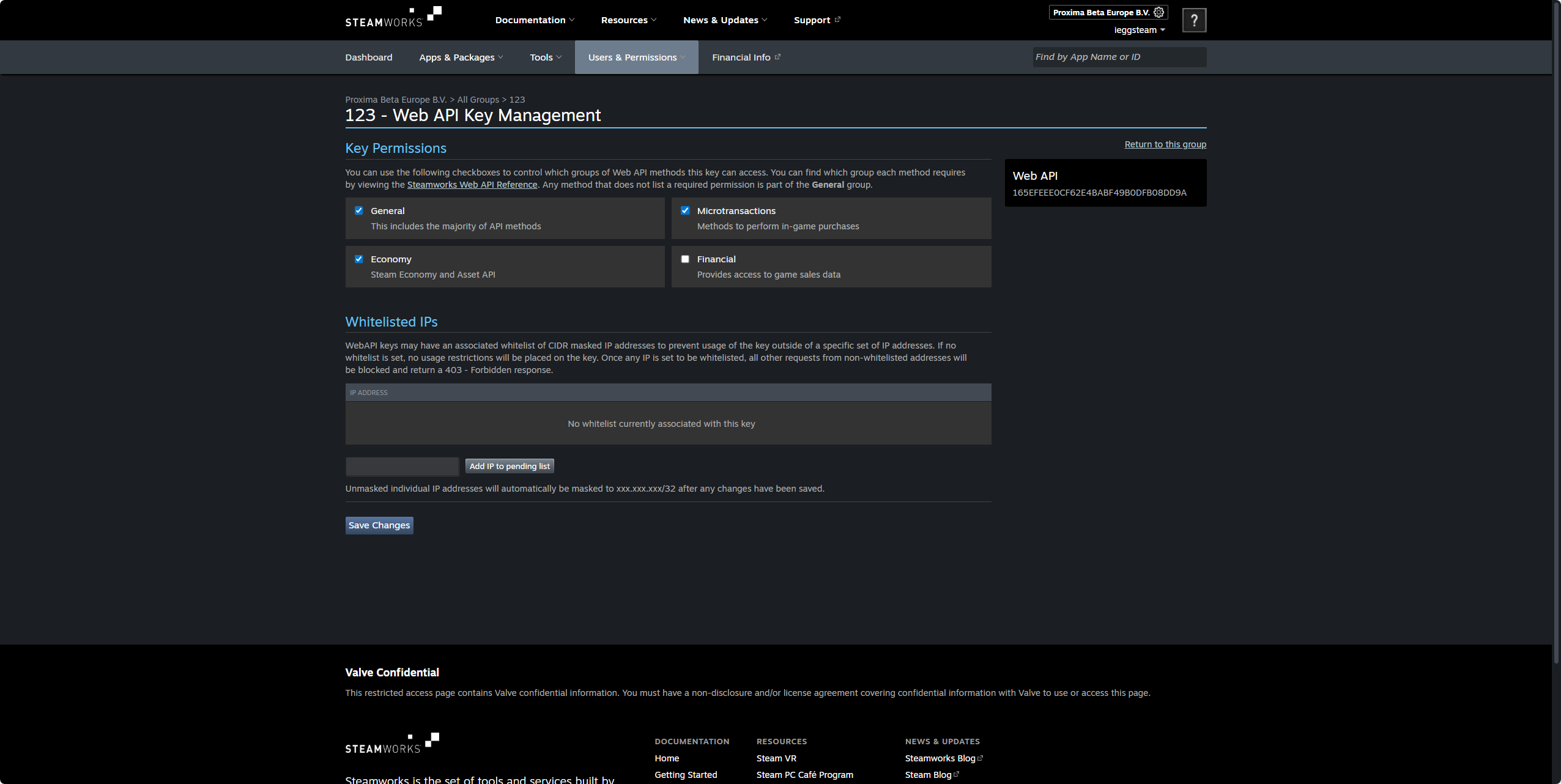
Part 3: Discord integration
How to: Create an application, configure a bot, and obtain the Client ID, Client Secret, Token, and server information.
Step 1: Create an application
Visit Discord Developer Portal。
Click on New Application in the top right corner.
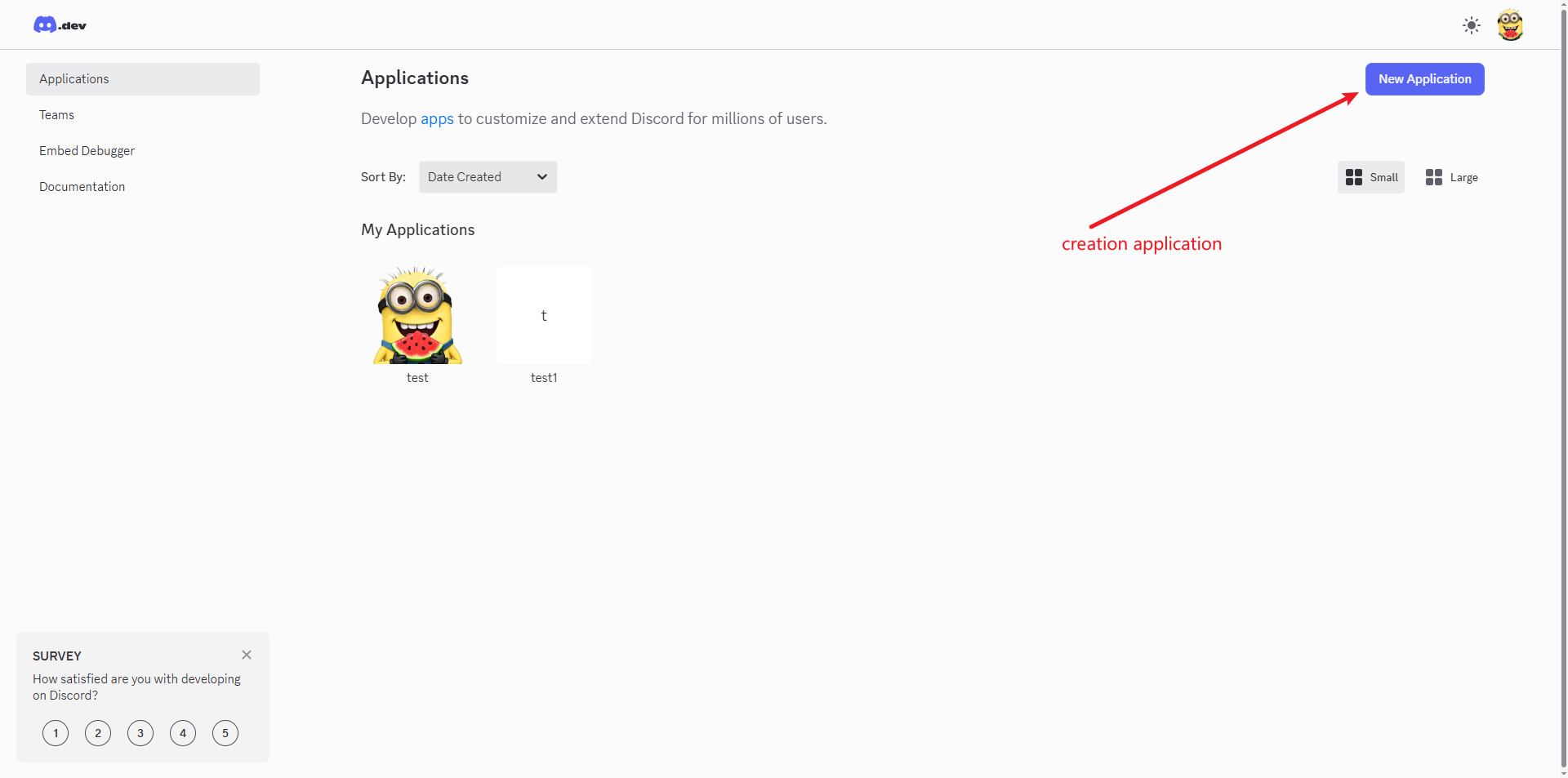
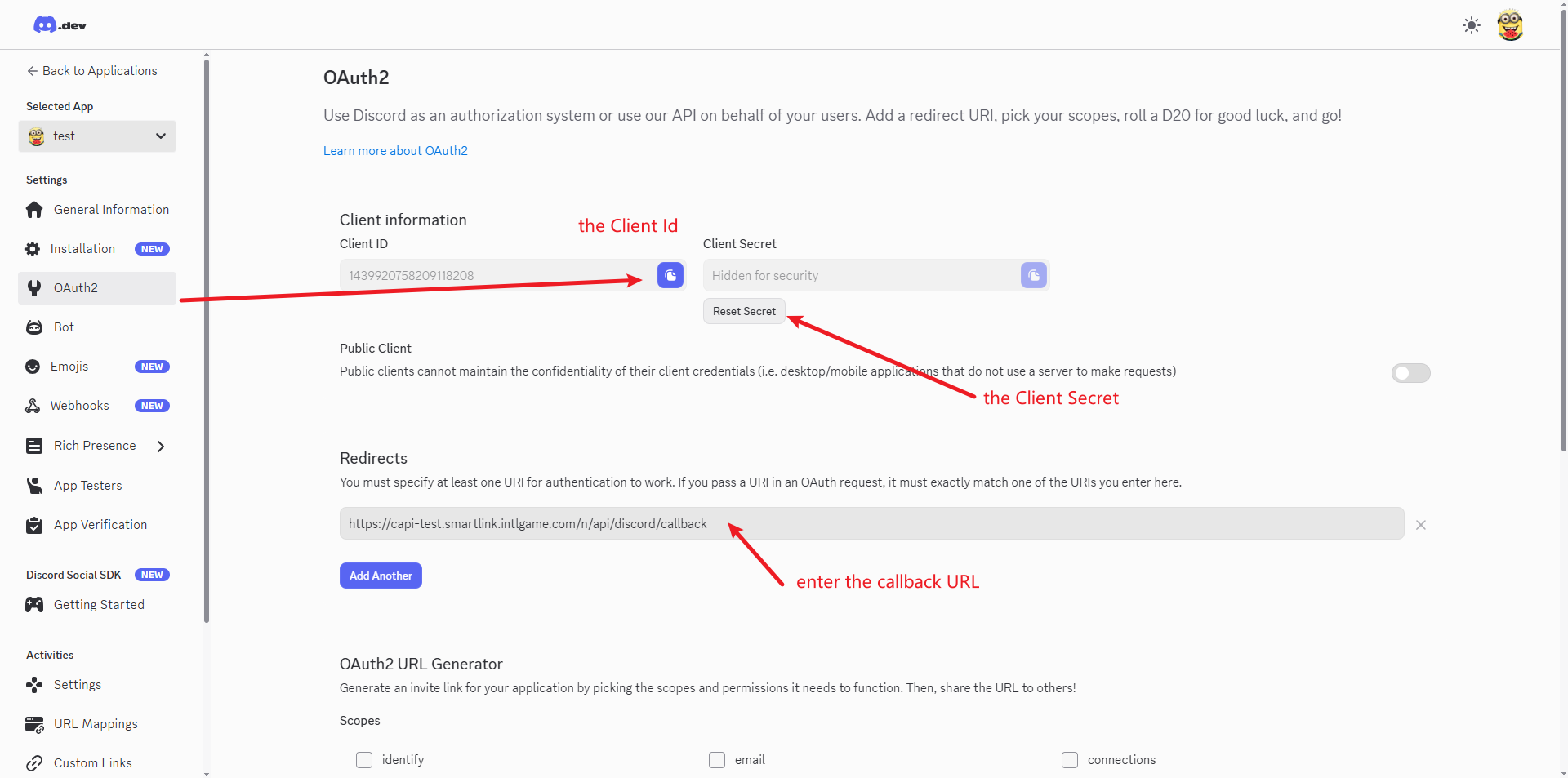
- In the sidebar, go to OAuth2 -> General and then:
a. Copy the Client ID and save this for later use.
b. Click Reset Secret and copy the Client Secret. Save this secret for later use.
c. Click Add Redirect and enter the following callback URL: https://capi.smartlink.intlgame.com/n/api/discord/callback
d. Click Save Changes.
If using a custom domain, please set the callback URL to: your-domain/n/api/discord/callback
For example: https://example.com/n/api/discord/callback
Step 2: Configure the bot
In the sidebar, select Bot.
Create a new bot and copy the Token for future use.
If you already have a bot, please use the Token generated when it was created.Important: Scroll down to Privileged Gateway Intents and enable all three options:
a. ✅ PRESENCE INTENT
b. ✅ SERVER MEMBERS INTENT
c. ✅ MESSAGE CONTENT INTENT
- Click Save Changes.
Step 3: Invite the bot to your server
In the sidebar, select OAuth2 -> URL Generator.
Under SCOPES, select Bot.
Under BOT PERMISSIONS, it is recommended to select Administrator to ensure it has full permissions.
Copy the Generated URL at the bottom, open the URL in a browser, select your server, and authorize the bot to join.
Step 4: Obtain server information
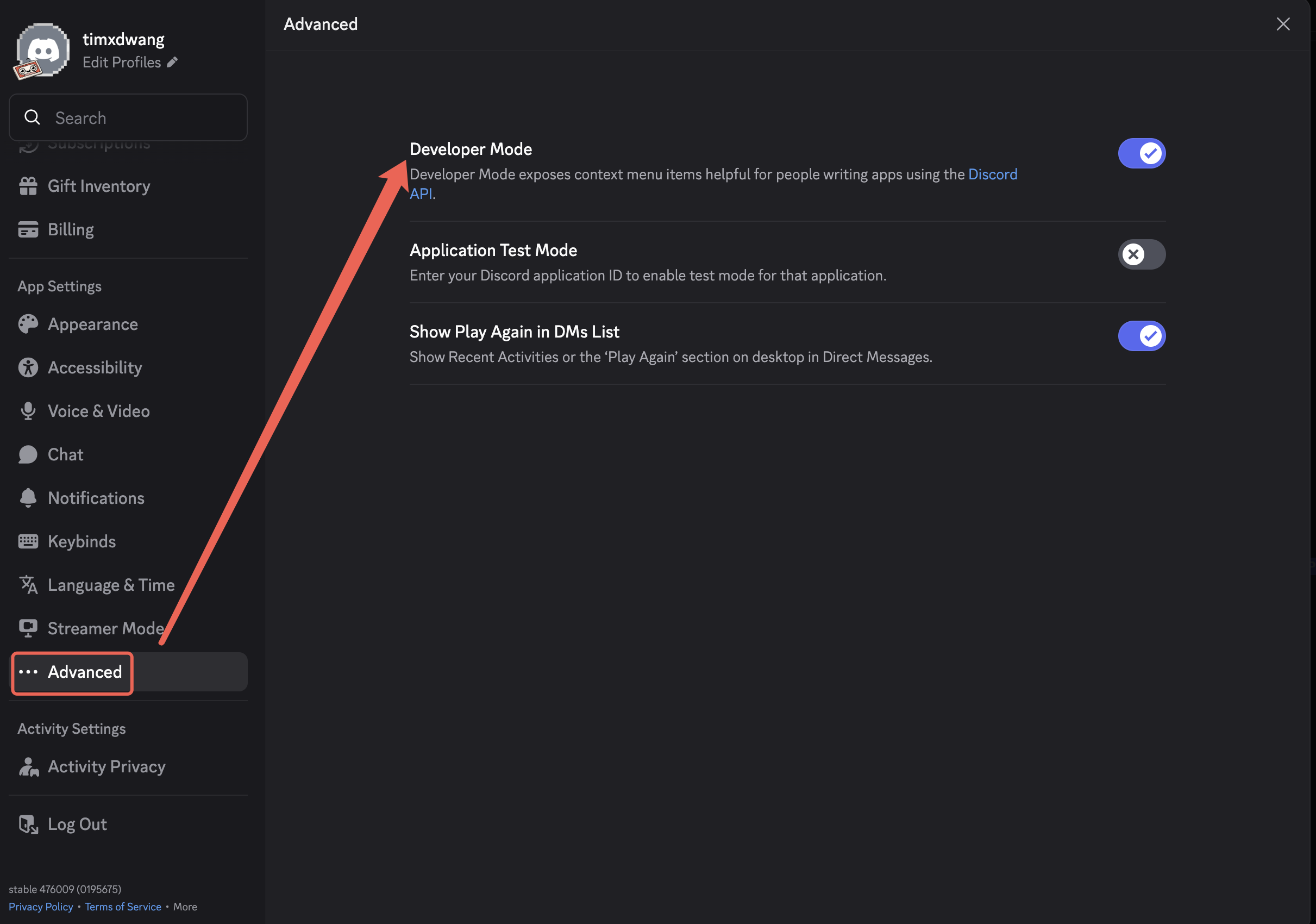
First enable Developer Mode in your Discord client under User Settings -> Advanced.
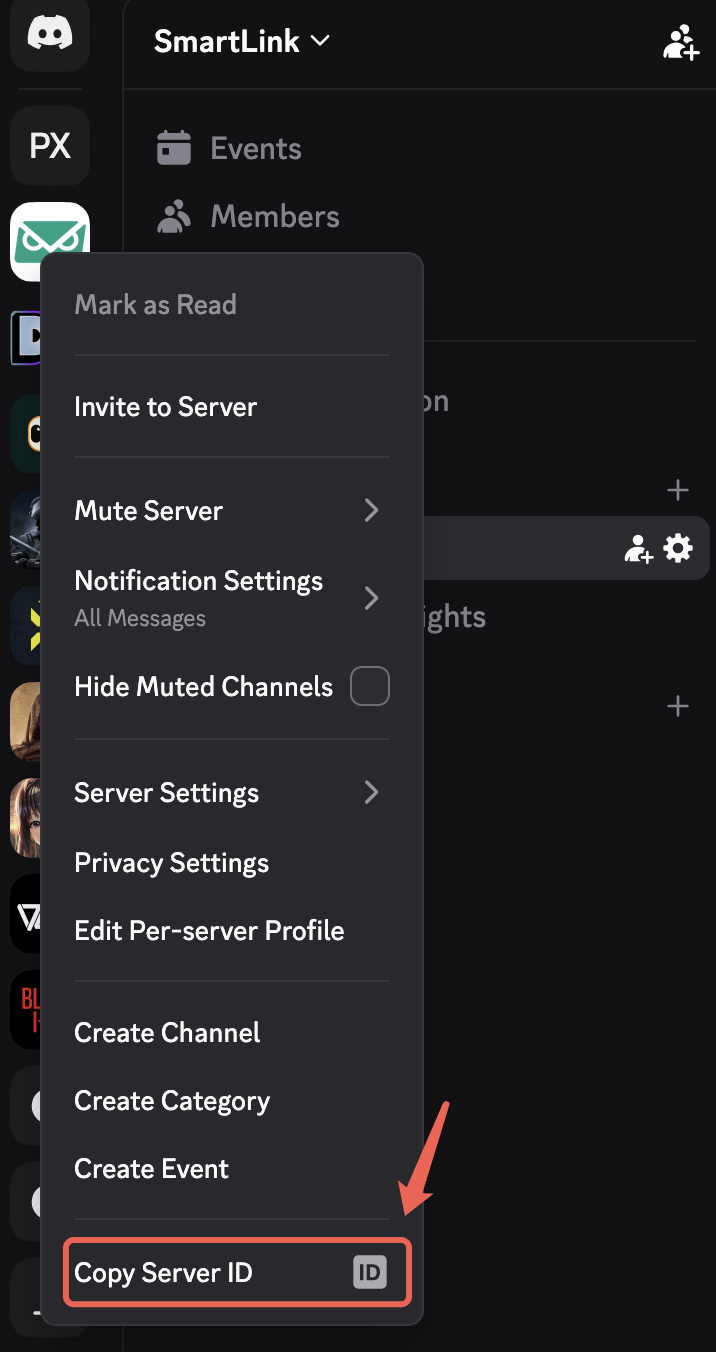
Guild ID: Right click on your server icon on the left and click on Copy Server ID.
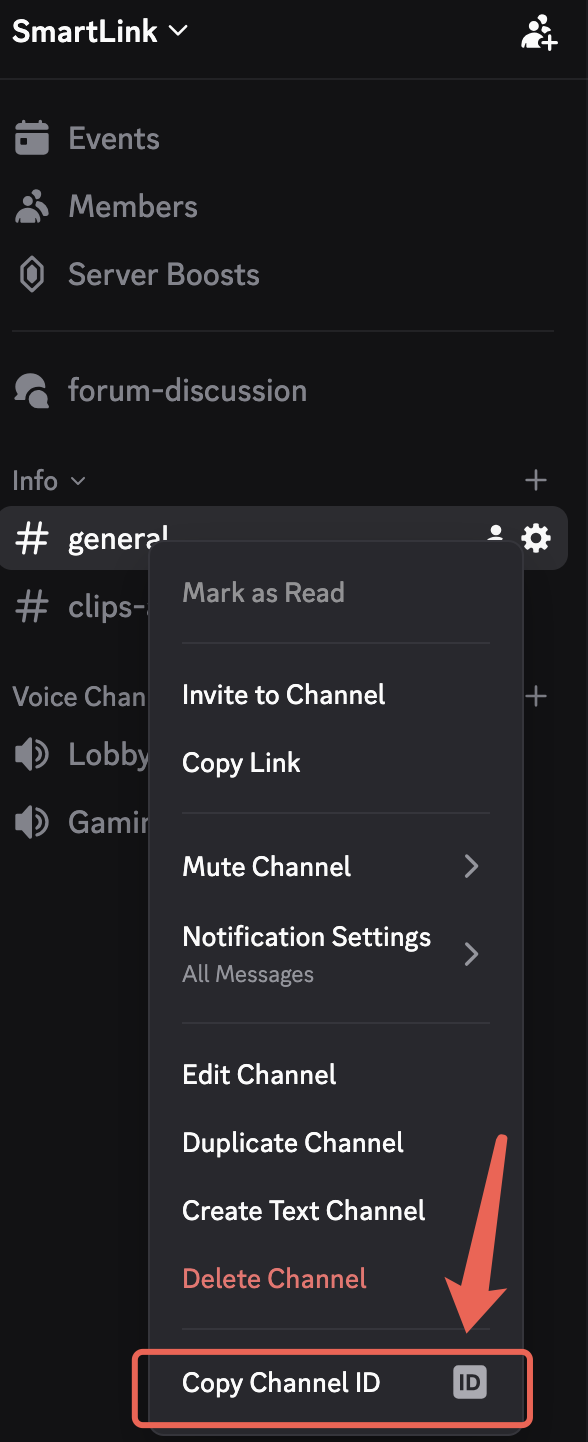
Channel ID: Right click on the relevant text channel (e.g., #general) and click on Copy Channel ID.