Manage Playtest Hub
The Playtest Hub is where you can set up an automated process to invite testers to any test version of your game. After setting up the test flow, SmartLink will send invitation emails to registered contacts. After a contact accepts the invitation, they will receive a key or instructions to access the test.
Procedures
In the SmartLink navigation bar,select Playtest hub, then select Testers list under Test Management.
Click Build testers list, enter a Testers list name and Desciption in the pop-up, then click Confirm.You can also view the Test List User Guide.
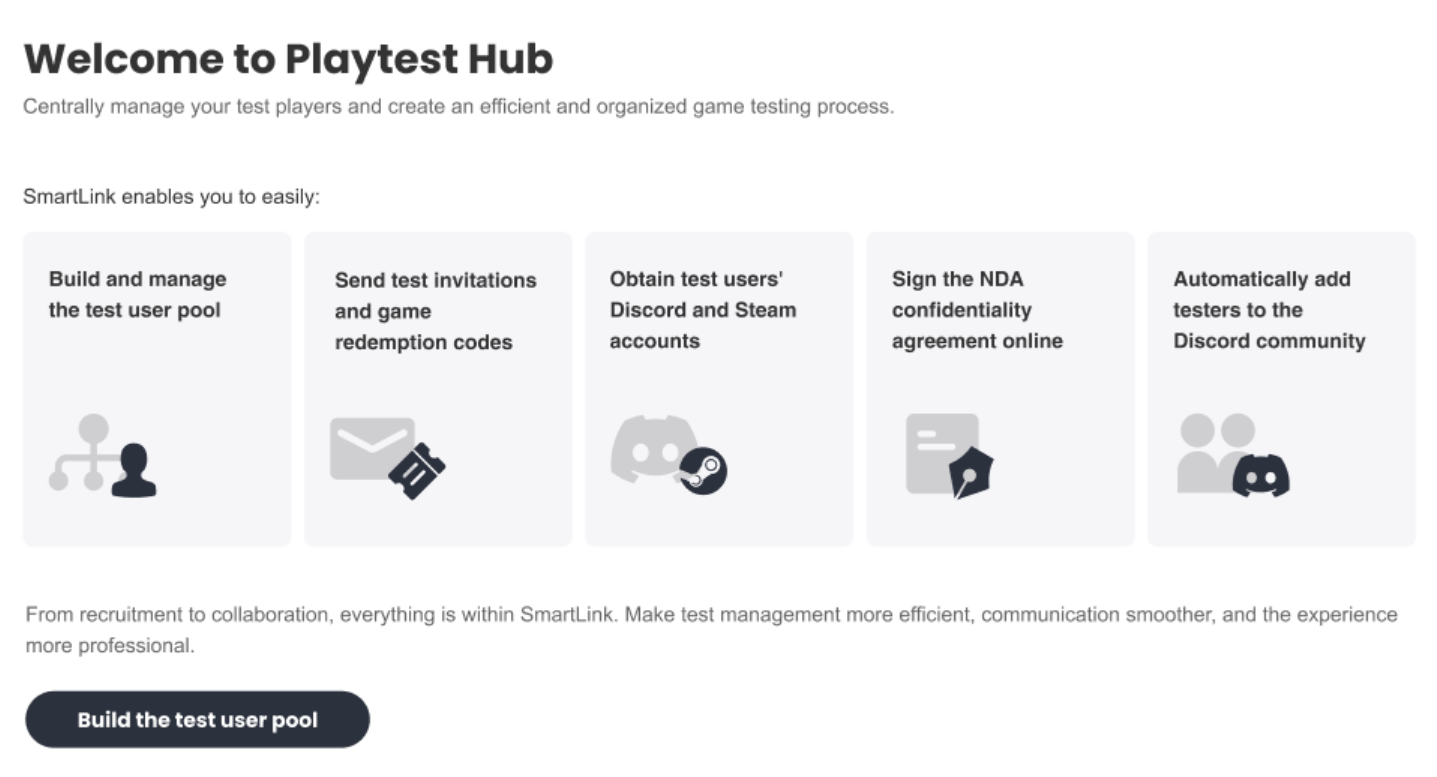
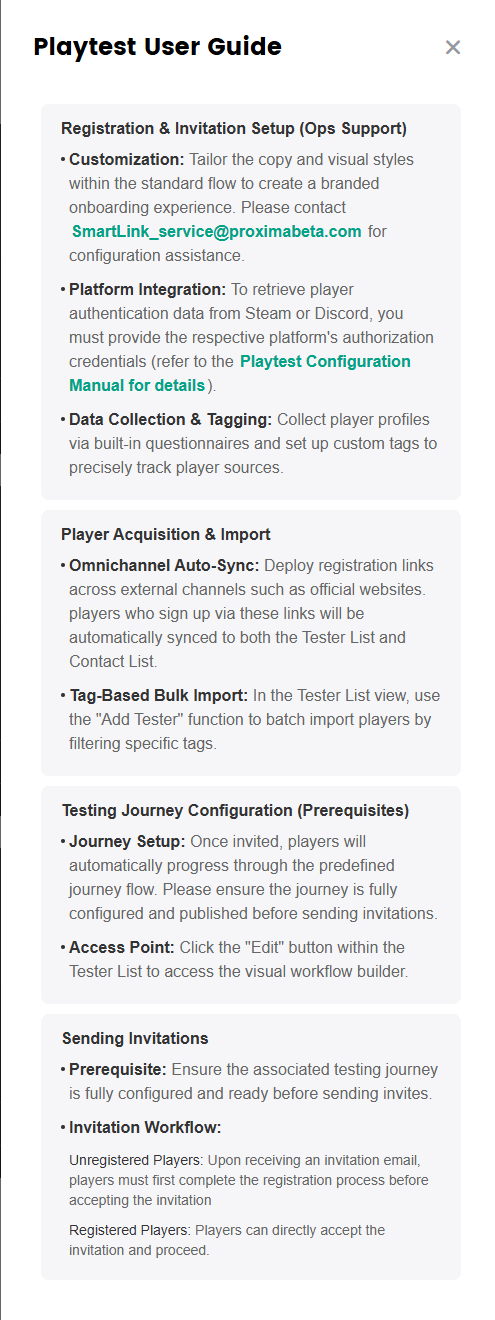
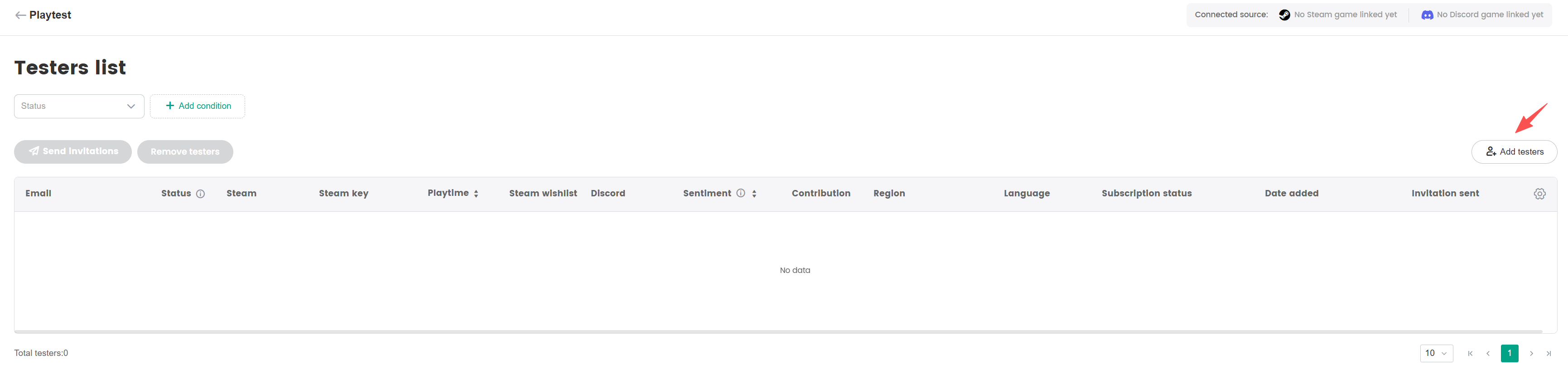
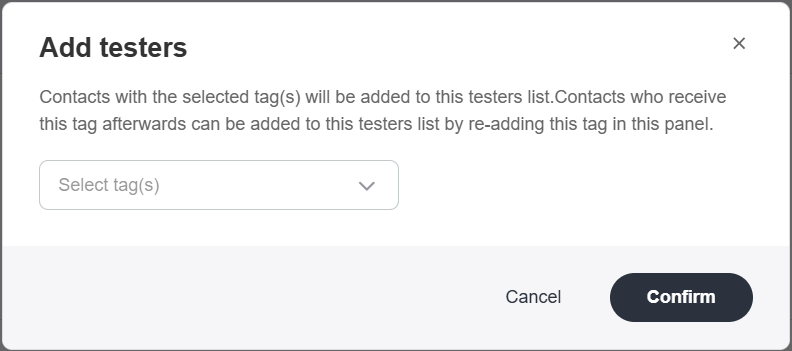
- Click Testers liststo enter the testers page, then click Add testers in the upper right corner. Then select the tags you want to invite and click Confirm.
Contacts are added to the Testers list if they have the specified tag(s) at that moment. In order to add contacts who receive the tag(s) at a later point, you will need to add that specific tag again to this testers list.
- After importing testers, the invitation journey can be activated. Click Invitation journey to open the settings page and customize the journey to your needs.
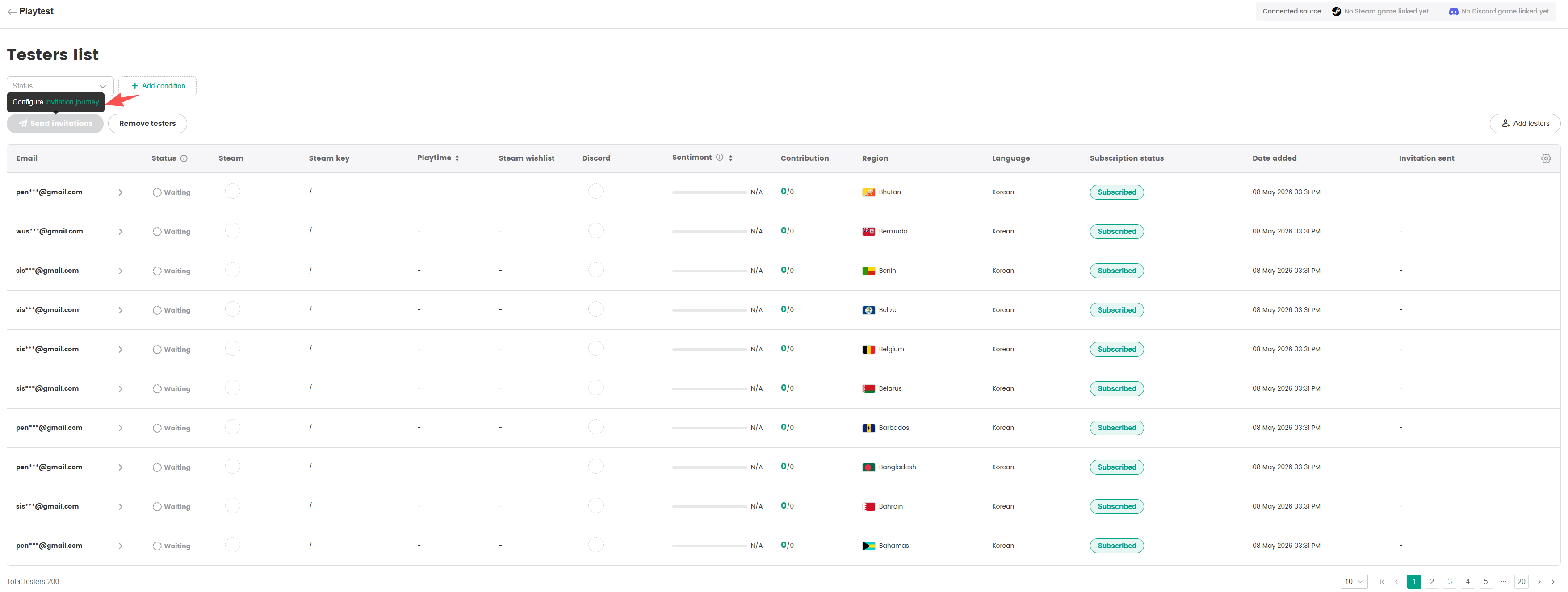
- The selected testers will enter the journey and their status will change from Waiting to Invited.
- The status of the tester will change to Approved after the invitation journey has been completed.
- The entire invitation journey can be customized and offers the possibility to define the specific conditions (or actions) under which the status changes from Waiting to Approved.
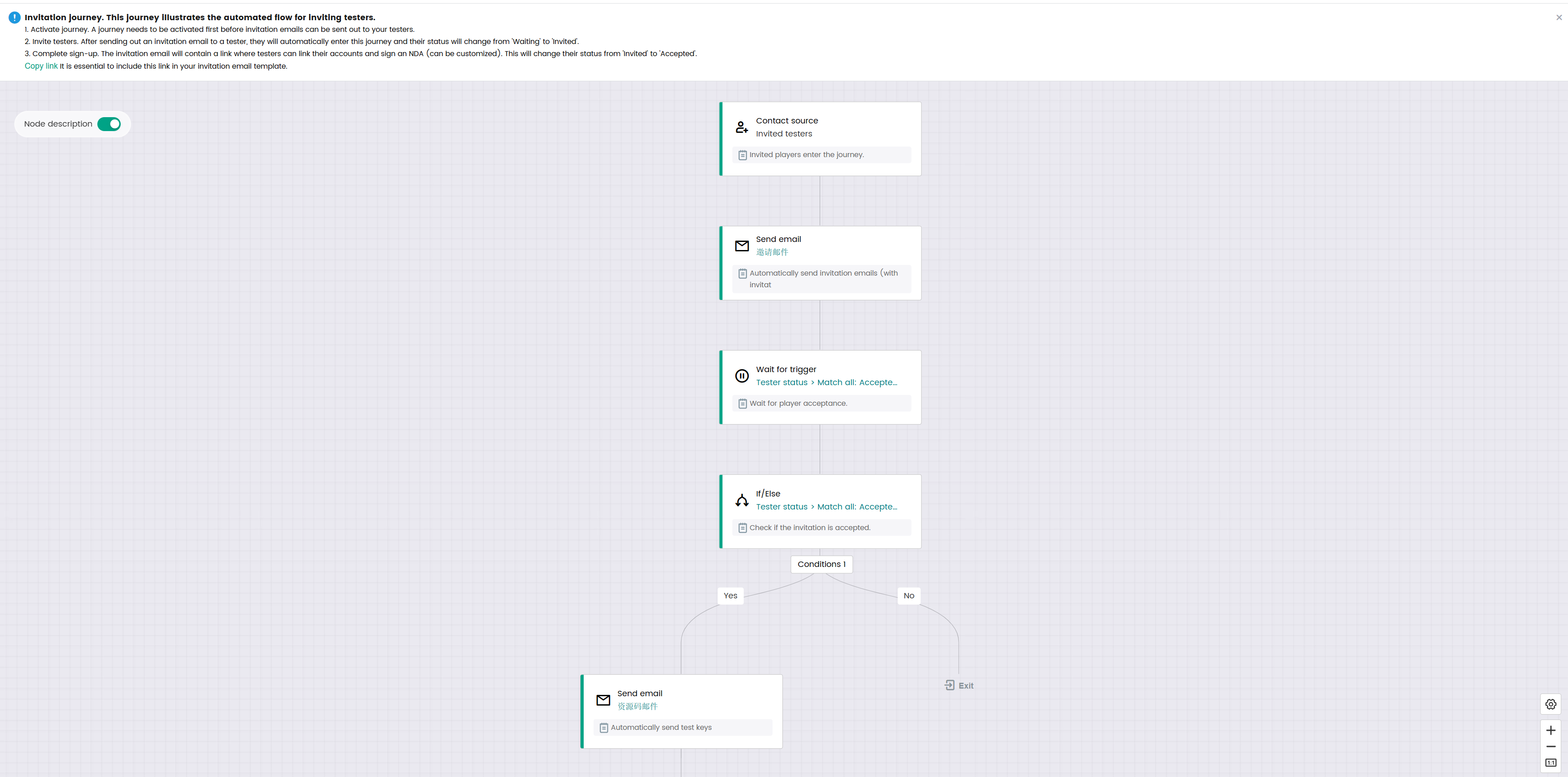
1)After sending the invitations, the invited testers will enter the invitation journey.
2)Set up the invitation email. Clicking the link in this email allows invited testers to link their Discord or Steam account and complete the NDA signing.
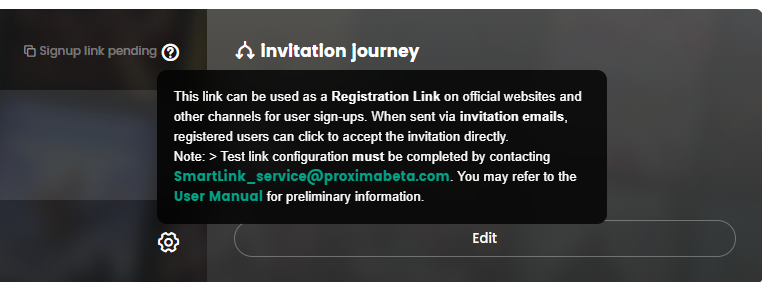
This link is an optional configuration.After all invited testers click the invitation link, they will enter the following web page process to complete the invitation process. Both this process and its style can be customized.
Players can change their bound email address during registration. A verification code email template must be configured. The unified placeholder for verification codes is {{Verification:code}}.For more details on creating transactional emails, see the Create Transactional Email Content.Once configuration is complete, submit the template name to the SmartLink operations team or email it to SmartLink_service@proximabeta.com.
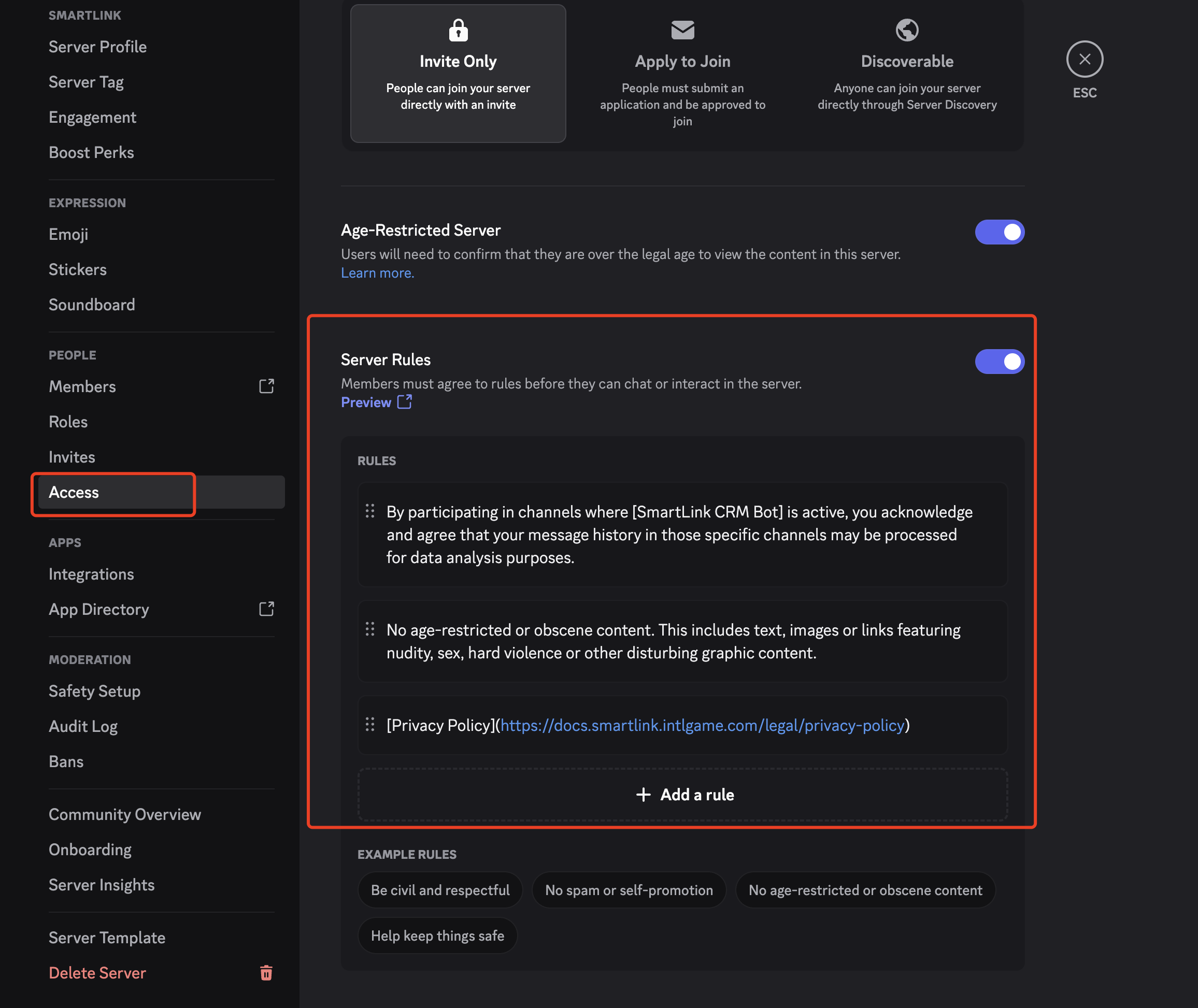
If you choose to monitor chat messages within Discord, it is recommended to enable the Server Rules.
3)Set up the 'Wait for'-trigger that decides when testers can proceed to the next journey point.
4)Verify if the tester has completed the invitation journey.
5)After a tester's status has changed to *Approved, they will receive the email with the game key or instructions to access the test.
Additional conditions can be added to the default journey points, but it is not possible to delete default journey points. After everything has been set up, click Save & activate.
- After the invitation journey has been activated, invitations can be sent out to testers with the status Waiting. Click Invite player enter the testing journey and select the players you want to invite,then click Confirm invitation in the pop-up window to start sending out invitation emails.

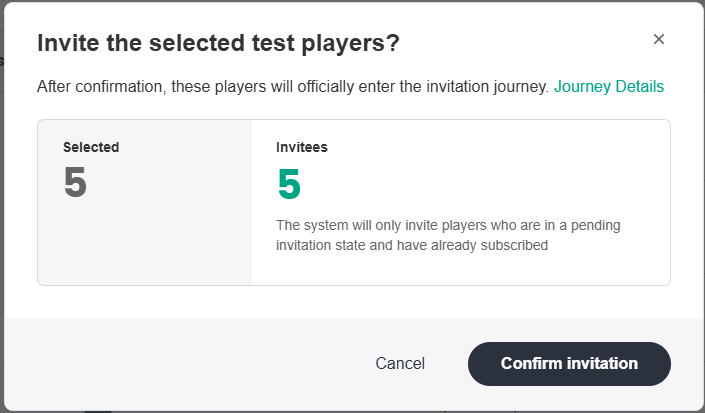
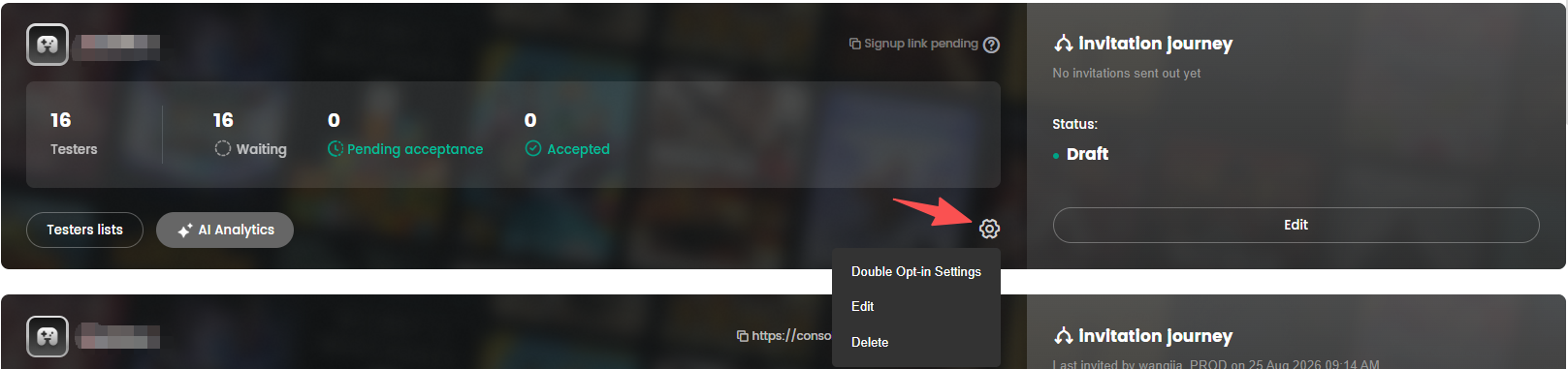
The test list can be configured with a double opt-in process. Once enabled, players must complete subscription confirmation before they can enter the test, ensuring compliance across different scenarios.
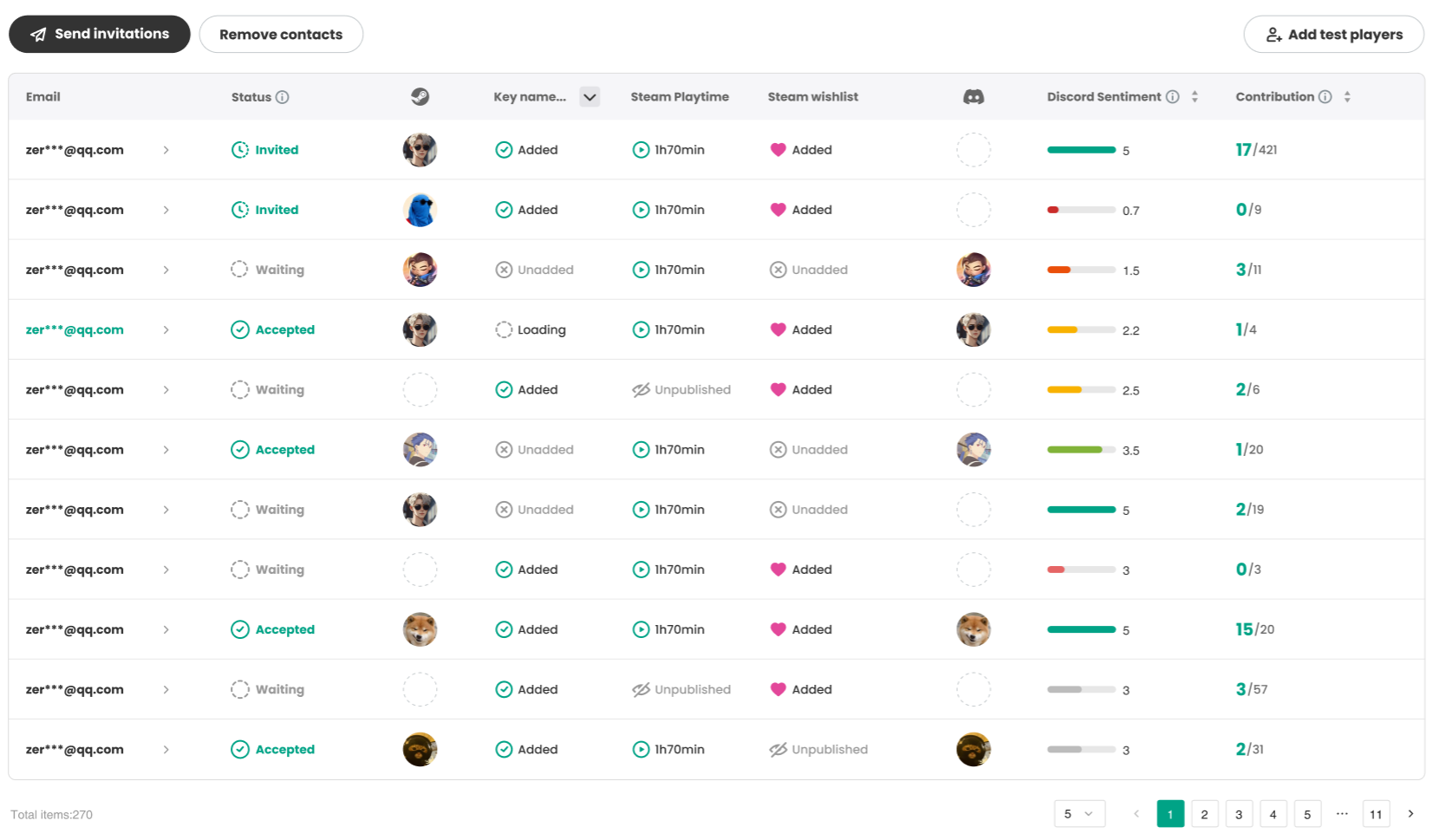
- After the invitations have been sent out, each contact's invitation status can be found on the testers page.
- Waiting: Players who have been added to the testers list.
- Invited: The invitation email has been sent to the tester.
- Accepted: The email with the key or instructions to access the test has been sent out.

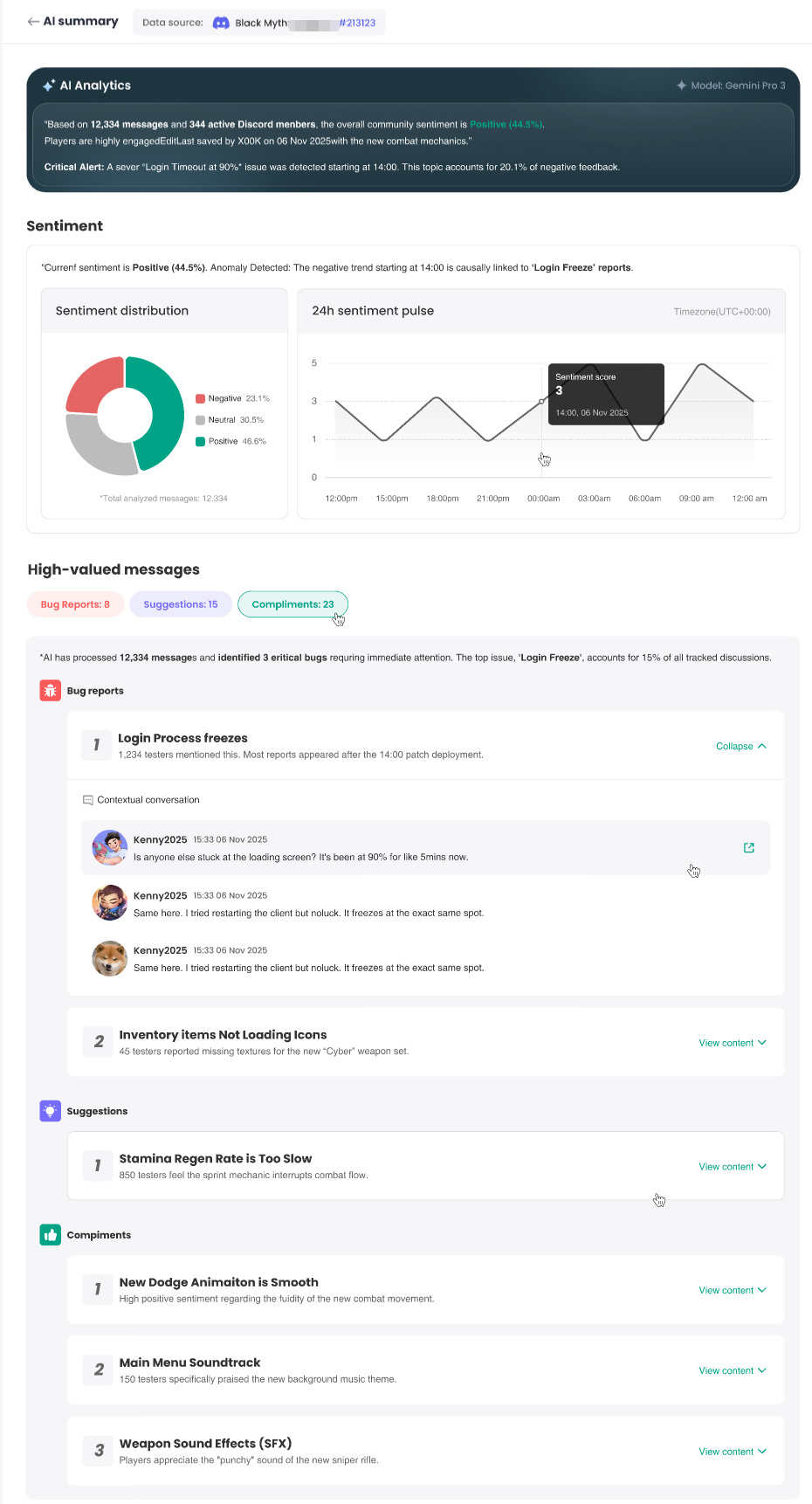
The sentiment of invited test players' comments on Discord is measured by a sentiment score. Each comment is assigned a score: 1 for negative, 3 for neutral, and 5 for positive. The overall sentiment score is the average of all individual scores, ranging from 1 to 5.
- The journey page will have an overview of all invitation emails and show the delivery status of invitation emails and key/instruction emails.
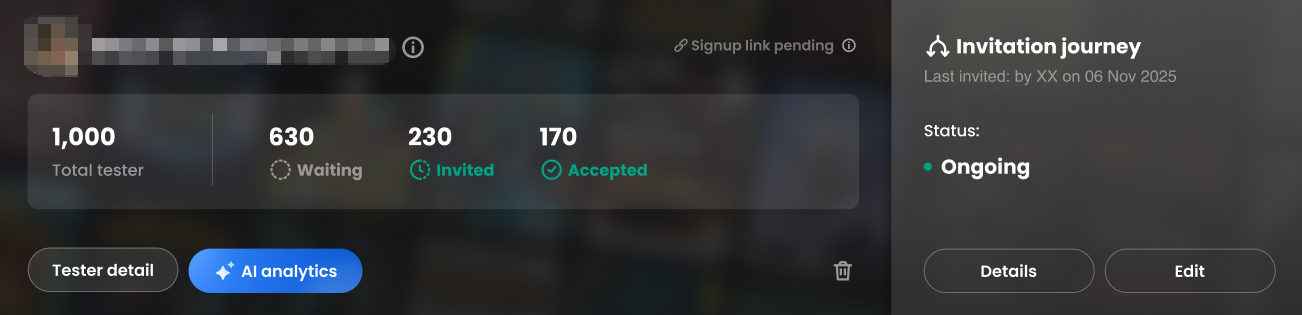
- Click AI Analysis to view the AI-analyzed Discord player feedback. It intelligently analyzes player sentiment (positive/negative/neutral), extracts frequent bugs, optimization suggestions, and core highlights, then generates a visual report to streamline the decision-making process.
To enable AI Analytics, please contact the SmartLink operations team or email SmartLink_service@proximabeta.com. The AI Analytics page supports full data analysis by Playtest, SmartLink, or Discord channel users.
Test Player Details
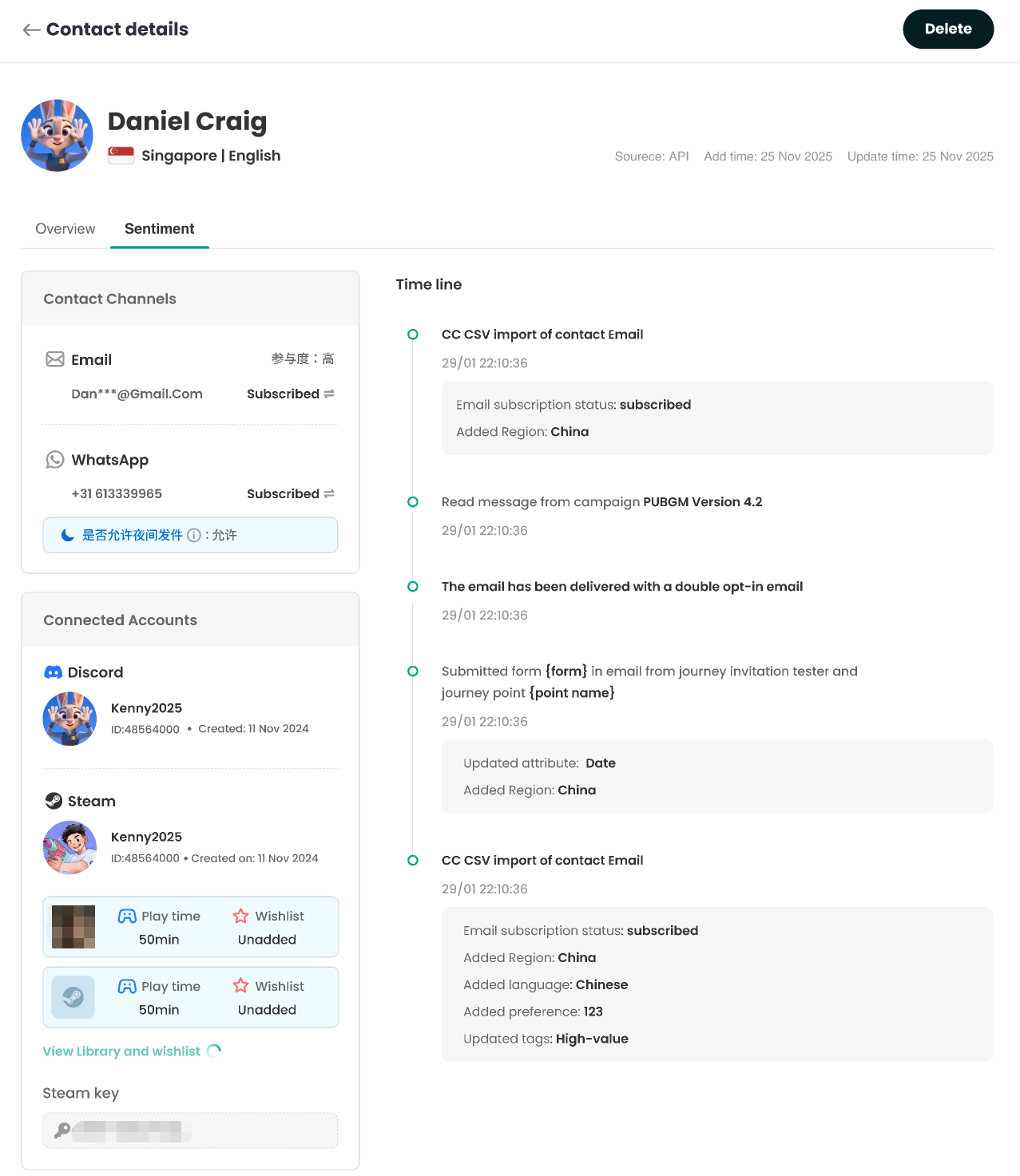
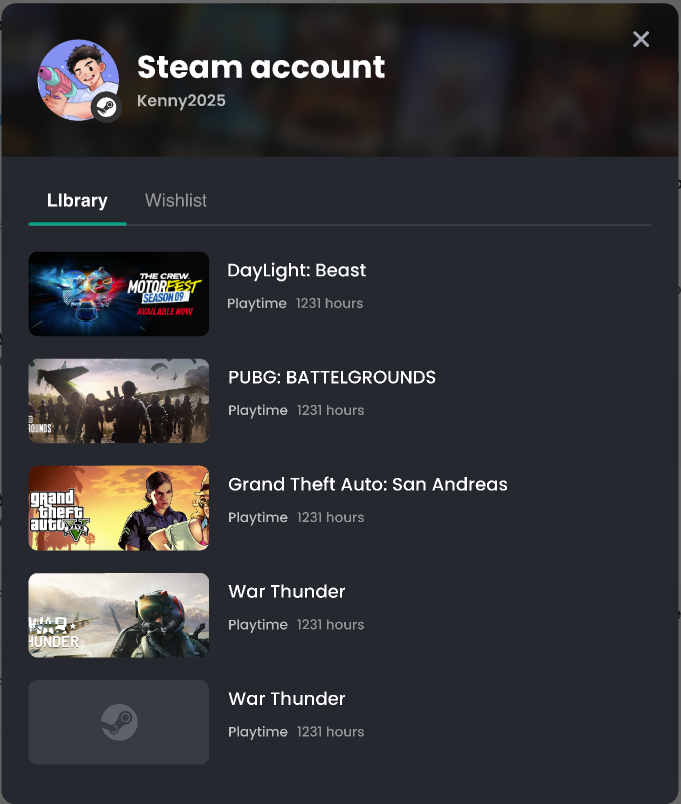
The player details page can display core game-related information such as the game playtime, account wishlist, and game library of games bound by the user on Steam, facilitating quick access to personal game data and assets.
In addition, for players participating in Playtest who have posted comments on the Steam or Discord platforms, the system will automatically evaluate and record their sentiment based on the emotional tendency of their comments, and these scores will be uniformly displayed on the corresponding player details pages.
Personal Information Page Data Display Permission Rules Table
| Category | Prerequisite | Information Display |
|---|---|---|
| Bound Game Information Display | Player Public Information | 1.Playtime of the bound game 2.Whether the game is added to the wishlist |
| Player Private Information | 1.Playtime of the bound game | |
| Player Steam Game Library and Wishlist | Player Public Personal Information | 1. Player's Steam Game Library 2. Player's Steam Wishlist |
| Player Private Personal Information | No data displayed | |
| Sentiment Data | Discord (Obtained by Default) | The player's sentiment score of messages sent in the specified channel on the business server is only collected for messages from the configured channel IDs. |
| Steam | Sentiment of the player's Steam reviews for the business game; only public reviews can be obtained. |