Customize Email Content
To provide a better user experience, SmartLink supports creating and editing personalized email content using keys or custom attributes in email templates.
Keys of this type are preset to offline static values, such as gift codes and promotional codes. When creating a key, you need to import these values in advance.
Create Email Content with Placeholders
In the SmartLink navigation bar,select Email, then select Marketing under Templates.
In the Marketing page, click Create Marketing Template.
Select a method to arrange your email content and use the {{}} format to fix the variables in the email content.
You can set multiple variables for a template, but the variable names must be different.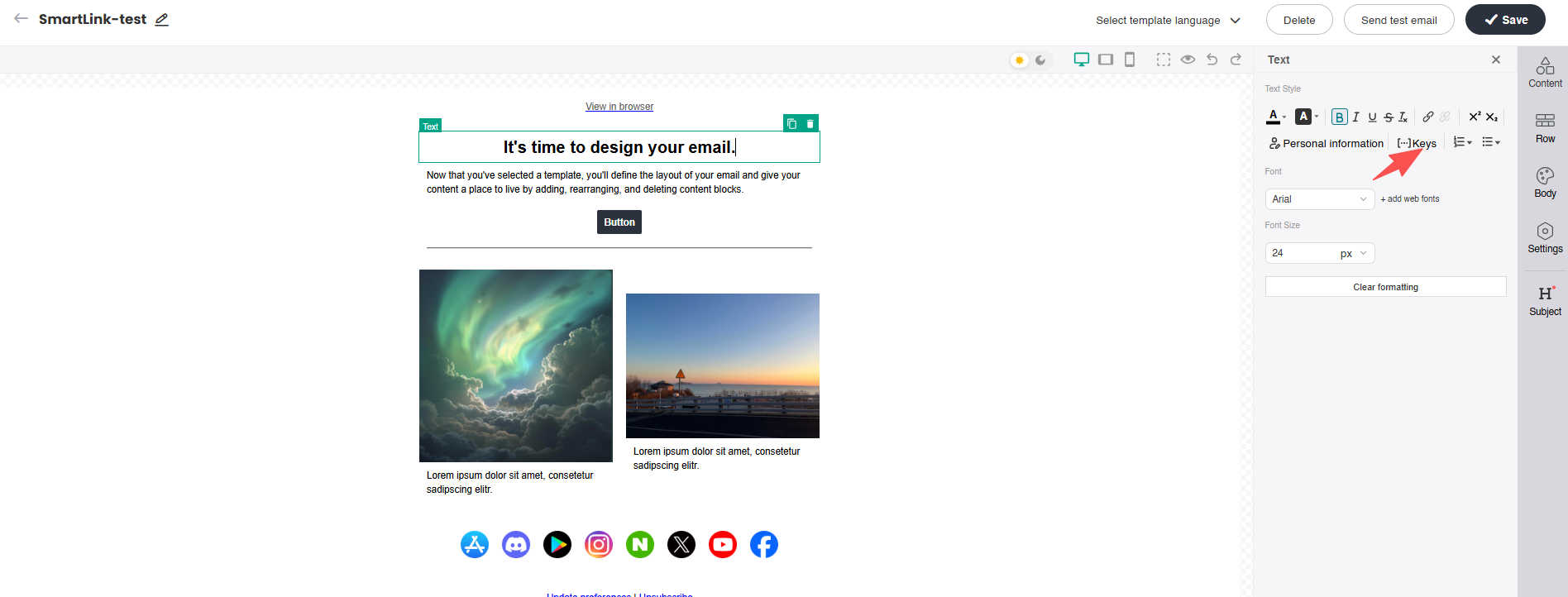
Save the template with keys in the {{xxx}} format.
The system will verify if the keys have been created. If yes, the system will display the basic information of the keys.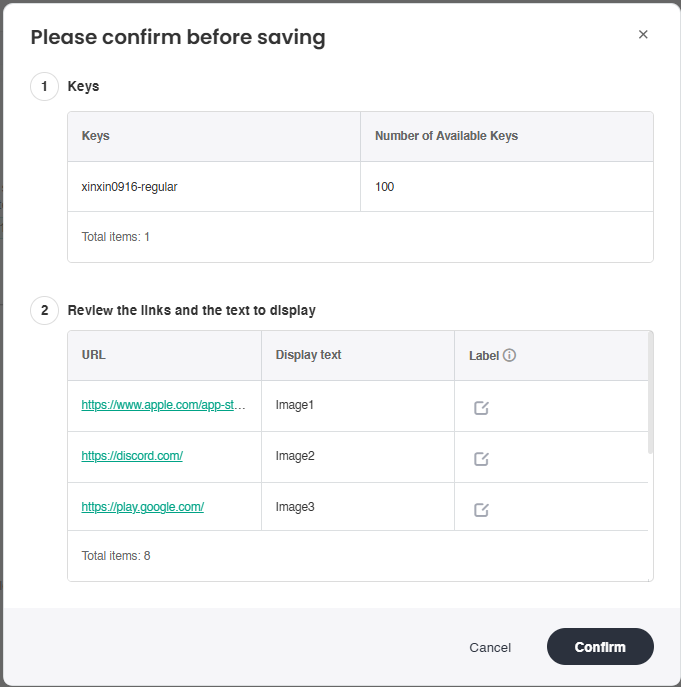
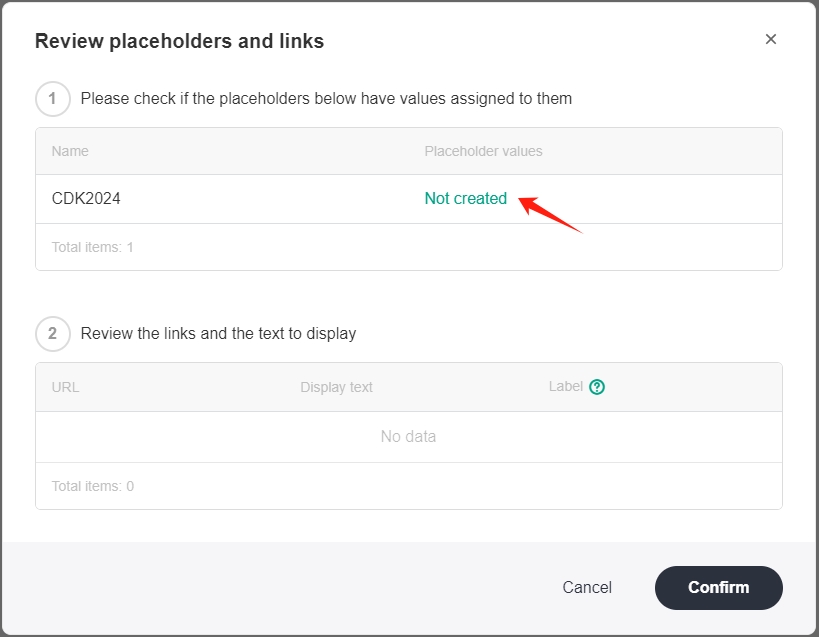
After confirmation, the template with keys will be saved successfully. When you send an email using this template, the keys will be replaced with corresponding values.
Select Custom Attributes as Email Variables
In the SmartLink navigation bar,select Email, then select Marketing under Templates.
In the Marketing page, click Create Marketing Template.
Select a layout mode to organize your email content, then insert Personal Information as a variable placeholder at positions requiring dynamic replacement.
For guidelines on creating additional custom attributes, refer toManage Custom Attributes。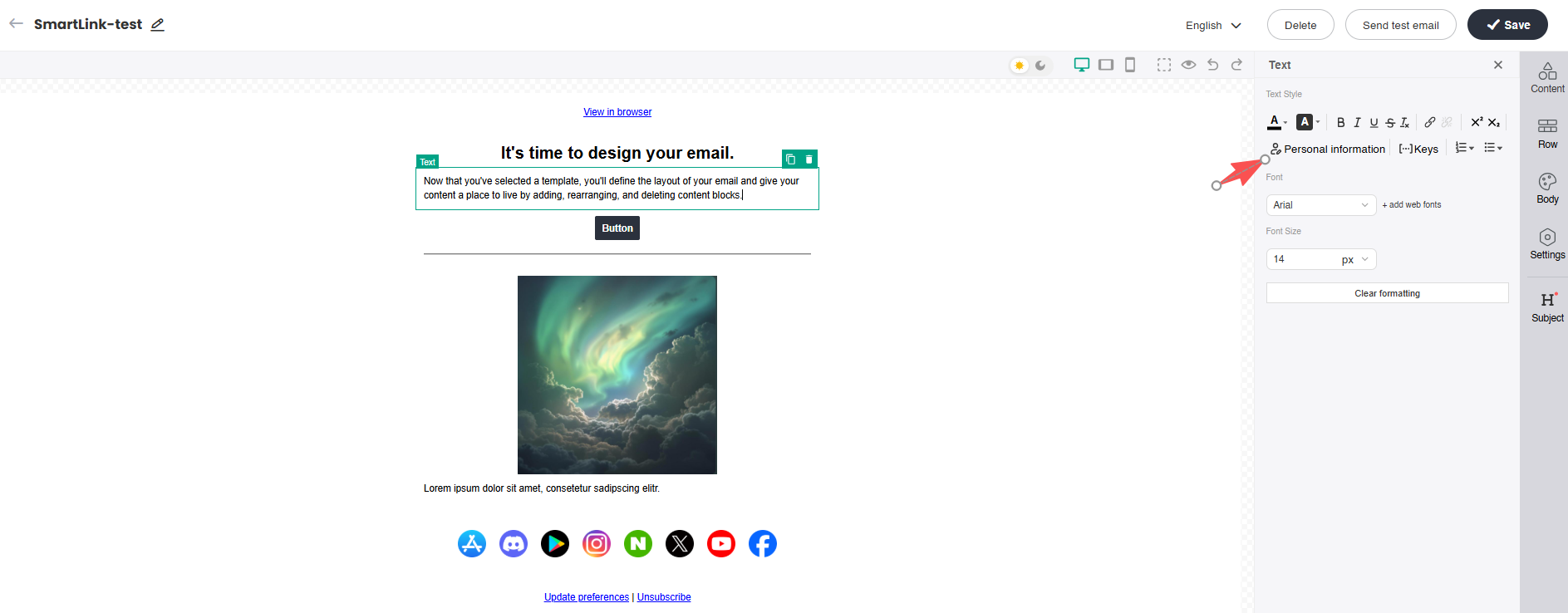
Select the target custom attributes to be referenced, and configure fallback default text to be displayed automatically when an attribute holds no valid data.
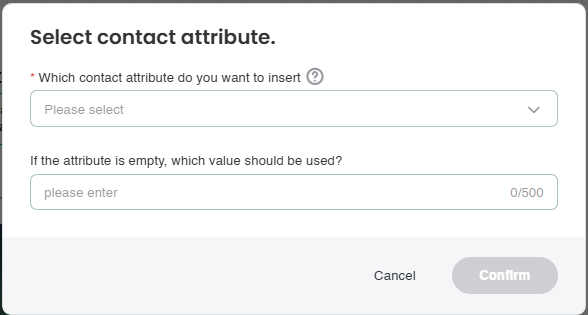
After saving the template embedded with custom attributes, the system will render a preview of the basic attribute information.
Confirm the settings, and the template with the custom attribute will be saved successfully. When this template is sent, the custom attributes will be replaced with the corresponding values.