Manage Game Asset
SmartLink's Game Asset Management feature allows you to centrally manage various types of keys and codes (such as CD-Keys, activation codes, and redemption codes) used during closed beta tests or operational campaigns.
With this feature, you can securely import and categorize all keys in bulk and accurately distribute them to target players or test groups via emails, automated journeys, or the playtest center. You can track the real-time status of any key and its redemption status, creating a complete closed loop from issuance to redemption.
Additionally, the visual data dashboard helps you quickly analyze overall redemption rates and usage trends, providing clear data support for operational decisions.
Procedures
In the SmartLink navigation bar, select Contacts page,then select key pool under Assets,and click Create key pool.
Enter the Key pool name, select the Distribution platform, and click Next.
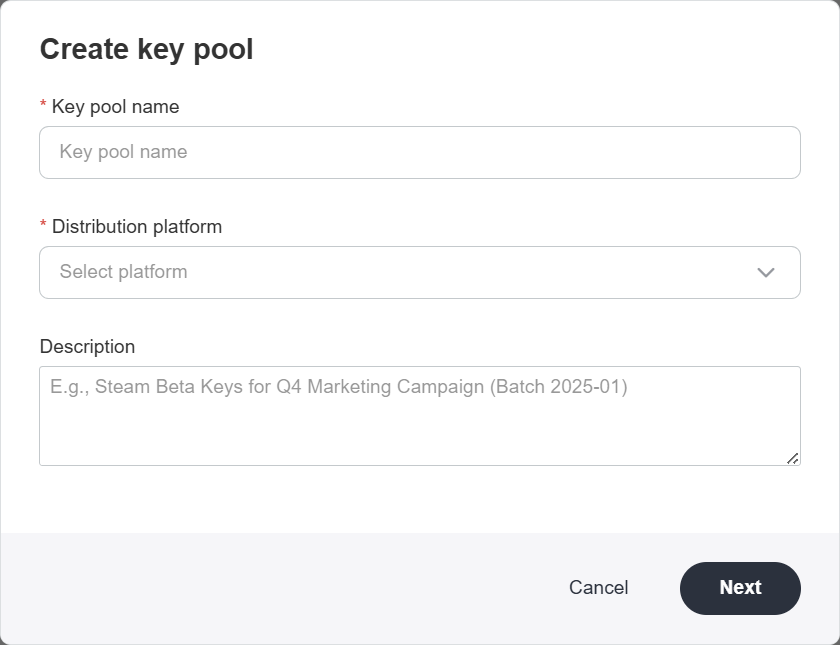
- Steam:You must select the Key Content and enter the Target Steam App ID, then click Save & Import Keys.
- Other:No additional selection is required. Simply click Save & Import Keys.
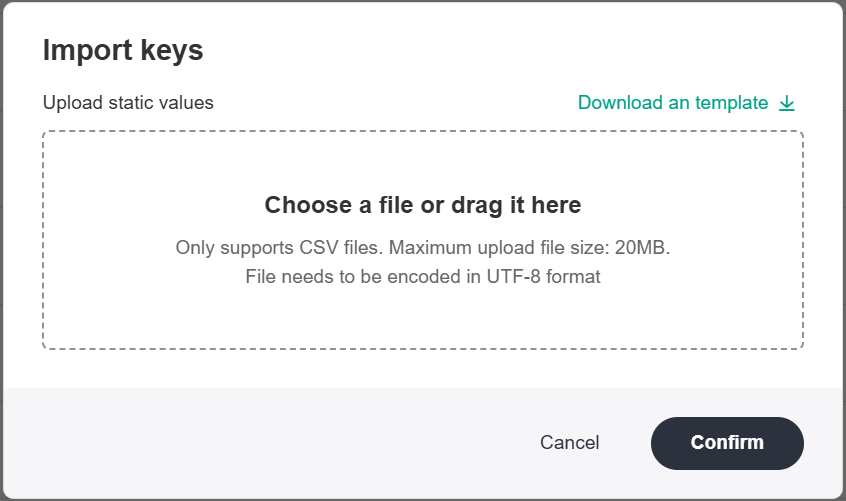
- Import the key file. Download the template, fill in the replacement values for the keys according to the template, and then upload the key file.
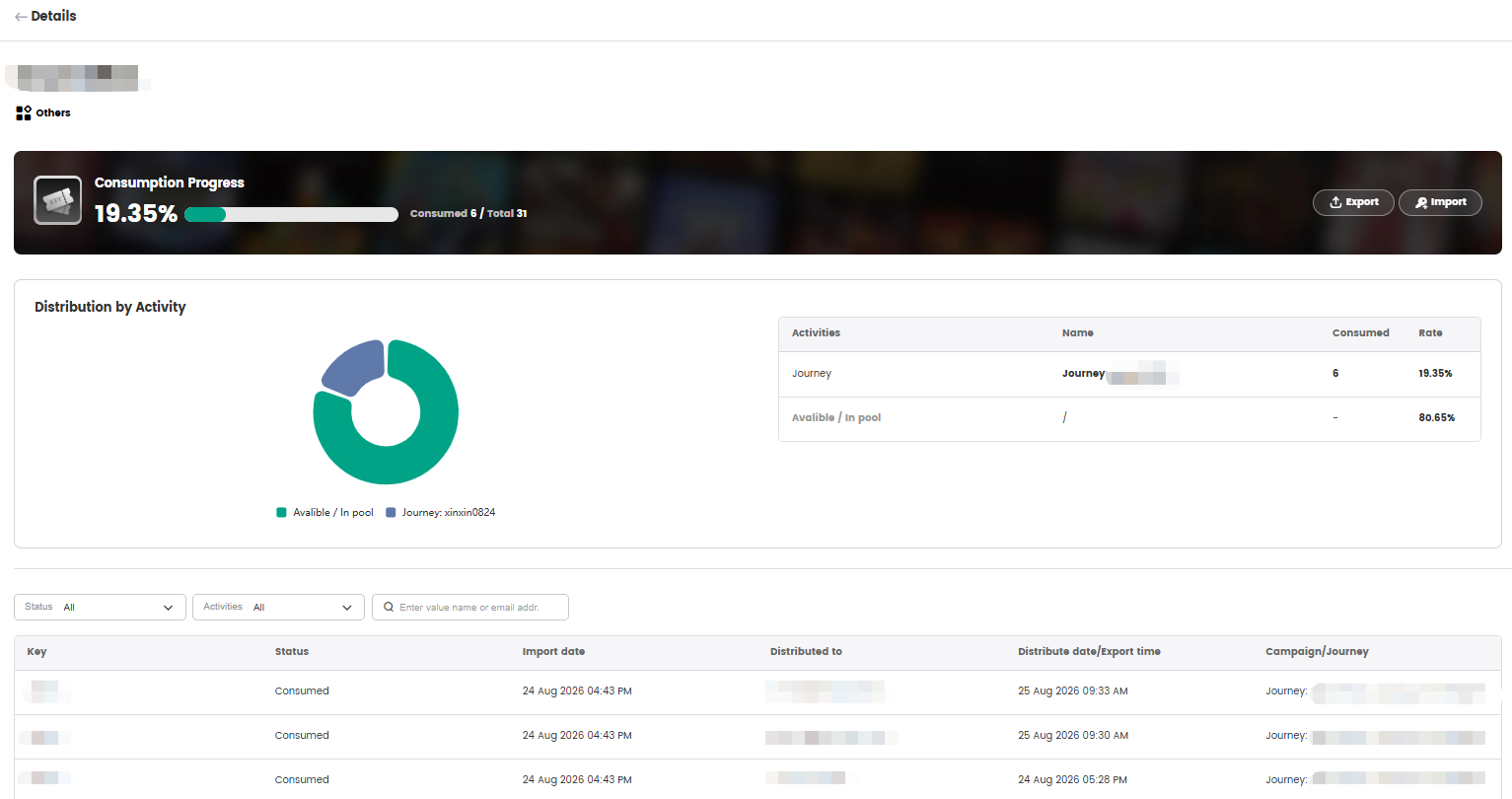
- After importing, you can view metrics such as Total Fixed Values, Delivered Percentage, and Campaign Distribution Ratio on the Key Details page. For campaigns using key placeholder replacements, the delivery will stop automatically once all keys have been distributed.
When the remaining quantity of keys is low, we recommend importing new keys promptly to avoid campaign interruptions.
- Unused keys can be exported in batches as needed for distribution through other channels. Click Export, enter the number of keys to export, click **Confirm Export, and go to the Export Center to download the file.
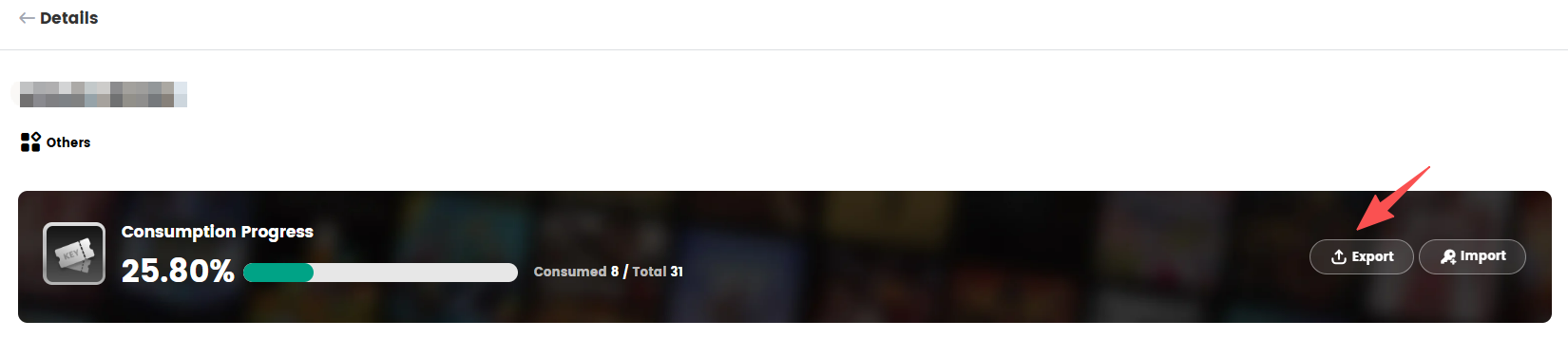
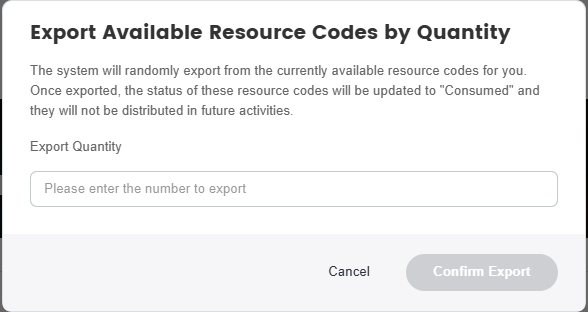
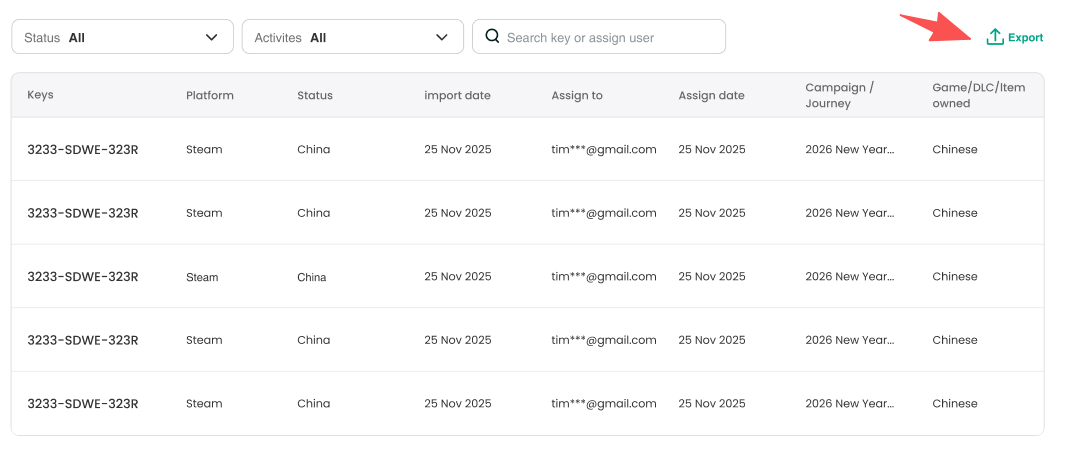
- After distributing the keys, you can click the Export button in the details page to export the key delivery details.
Only the project owner can export the key delivery details.
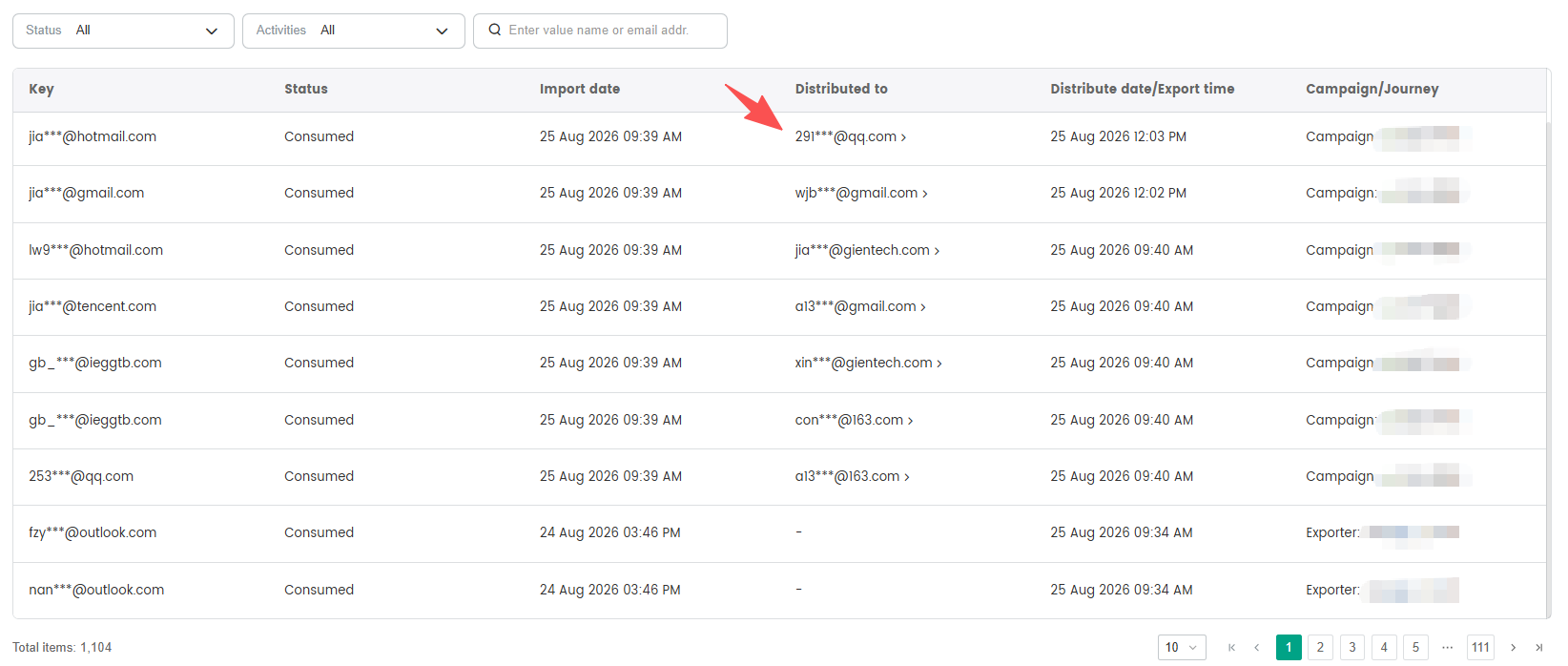
- In the key distribution details, you can click on the contact email to access the contact's profile page.
- For instructions on how to apply keys in campaign emails, please seeCustomize Email Content。